Web HostingBudget-friendly shared hosting plans
 Domains SearchFrom .com to unique country domains, explore and register extensions worldwide.
 WordPress HostingPower your blog or business with WordPress hosting.
 Email HostingSimple, secure email hosting that helps you stay connected and professional.
 Reseller HostingStart your own hosting business with easy and reliable reseller hosting plans.
 AffiliateJoin our affiliate program and earn commissions every time you bring in new customers.
 cPanel HostingHosting powered by cPanel, the world’s most user-friendly control panel.
 Windows HostingBuilt for Windows applications and websites
 IN Domain PricesDon’t miss out on the best domain deals in India!
 WHOIS LookupFind out who owns a domain name with a quick and easy WHOIS search.
 Domain TransferTransfer your domain to us and enjoy reliable support every step of the way.
 .Com DomainGet the most trusted domain for worldwide credibility
 All TldsSearch and register domain extensions worldwide.
 SSL CertificatesProtect your website with trusted SSL certificates and keep customer data safe.
 VPS HostingPowerful virtual servers. Full root access. Reliable uptime.
 Managed VPS HostingNot a tech expert? Choose our fully managed VPS service.
 Dedicated ServersTake full power and total control of your own physical server.
 AI Website BuilderCreate stunning websites instantly with our easy AI builder.
 Online ShopBuild your eCommerce store easily, no coding, just growth.
 Web Design ServicesGet a website built for your brand and designed for your goals.
 Contact UsReach out to us for support or questions.
 SupportGet answers and how-to guides for all our services.
 BlogRead our latest blogs on web hosting, online business, digital marketing, and other helpful topics.
Table of Contents
You built a great product or service, created a website, and many customers are coming in.
But then emails start piling up.
“How do I reset my password?” “Where is my order?” “This feature isn’t working.”
Sound familiar? If you’re handling customer support manually, you already know the pain.
It’s time-consuming, repetitive, and without the right system, things fall through the cracks.
That’s exactly why a customer support portal is a game-changer.
In this guide, I’ll walk you through everything you need to know about building and managing a customer support portal for your website.
What Is a Customer Support Portal?
A customer support portal is a dedicated self-service hub that helps your users find answers to their questions.
Instead of sending emails back and forth or leaving customers waiting on hold, a support portal gives them a direct and organised way to find answers and submit issues.
A typical customer support portal includes:
- A knowledge base or FAQ section – where customers can find answers on their own
- A ticket submission system – where customers can report problems or ask questions
- Live chat or a chatbot – for real-time help
- A ticket tracking system – so customers can follow up on their requests
- A community forum – where users can ask each other questions and share solutions
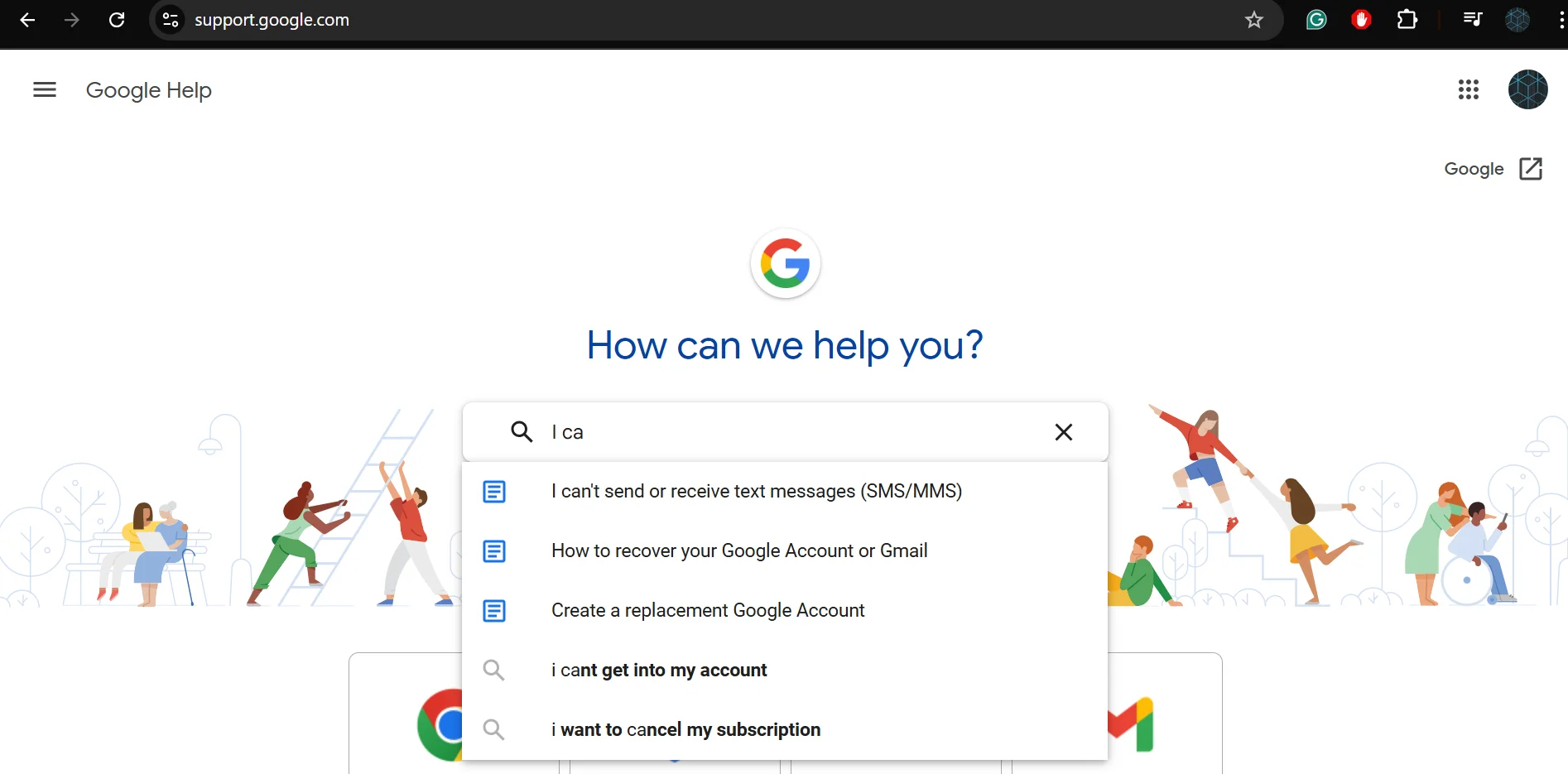
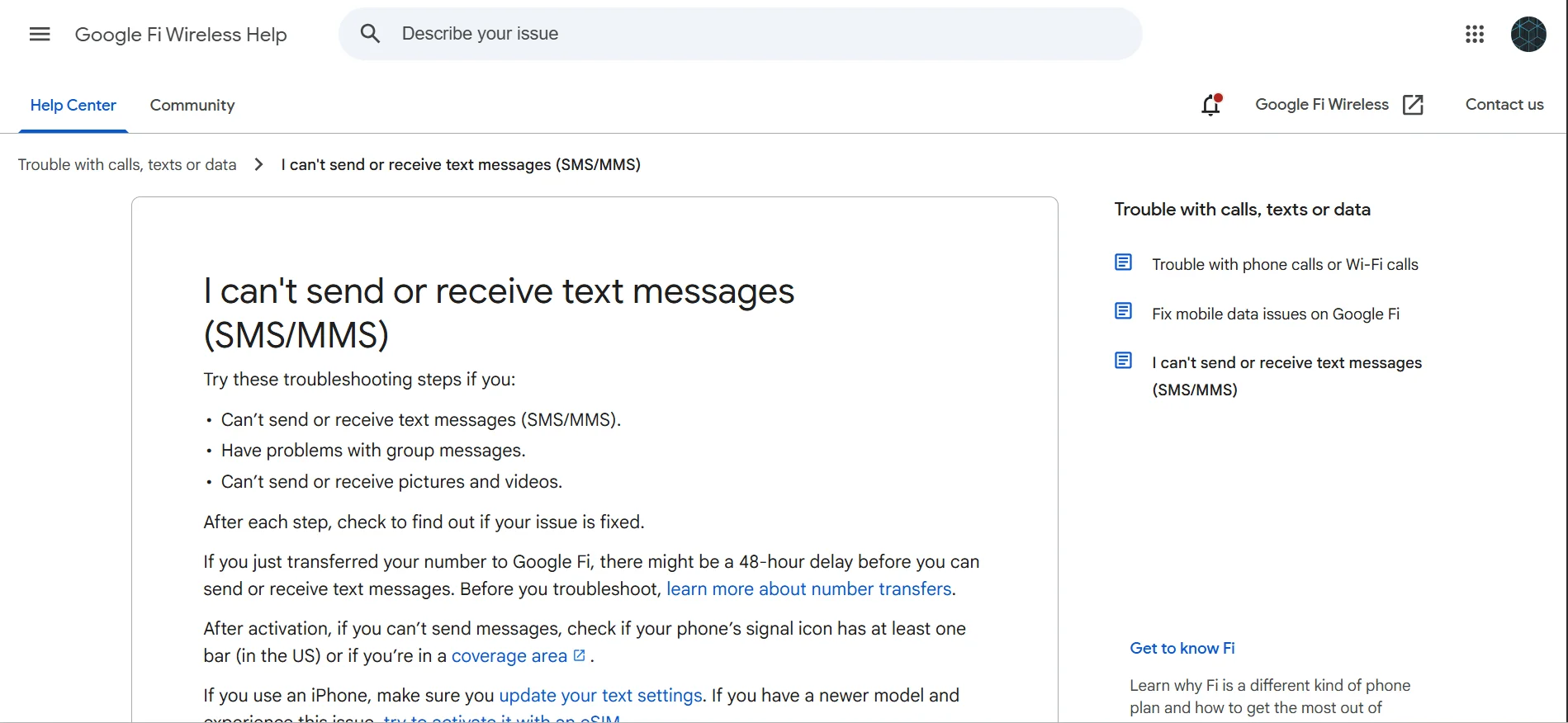
Example: Google’s customer support portal:
What are the Benefits of Online Customer Support Portals?
Still on the fence about whether you need one?
Here are the key benefits that make a customer support portal worth the investment:
1) Reduces Support Workload – When customers can find answers themselves through a knowledge base or FAQ, your support team handles fewer tickets.
This frees up your team to focus on complex issues that actually need human attention.
2) Improves Response Times – A centralized portal means no more digging through email threads.
Tickets are organised, prioritised, and easy to assign. This makes it easy for your team to respond faster.
3) Available 24/7 – Your team might sleep. But your portal doesn’t.
Customers can browse your knowledge base, submit tickets, or chat with a bot outside of business hours.
4) Builds Customer Trust – A professional support portal signals that you take your customers seriously.
When people know they can get help quickly and easily, they’re more likely to stick around and recommend your business.
5) Gives You Valuable Insights – Support portals track ticket volumes, common issues, and resolution times.
This data helps you identify recurring problems and improve your product or service over time.
6) Scales With Your Business – As your customer base grows, a portal grows with you.
You can add more agents, expand your knowledge base, and integrate new tools without rebuilding your entire support system.
Key Features of an Online Support Portal
Support portals shouldn’t all be the same.
But there are some key features to look for when building or choosing yours:
a) Knowledge Base / FAQ – A searchable library of articles, guides, and answers to common questions. This is your first line of defence against support overload.
b) Ticket Management System – Allows customers to submit support requests and lets your team track, assign, and resolve them in an organised queue.
c) Live Chat or AI Chatbot – Real-time support through a chat widget. This can be with a real person. But having even a basic chatbot handling common queries can significantly reduce ticket volume.
d) Canned Responses and Templates – Pre-written replies to common questions that help your team respond faster without sacrificing quality.
e) Ticket Tracking – Customers should be able to log in and check the status of their open tickets. This reduces follow-up messages like “Any update?”
f) Reporting and Analytics Dashboard – Data on ticket volume, agent performance, resolution time, and customer satisfaction to help you improve over time.
g) Mobile-Friendly Design – Many customers will access your portal from their phones. Make sure it works well on all screen sizes.
h) Multi-Channel Support – Integration with email, social media, or phone so all customer interactions funnel into one system.
How to Build a Customer Support Portal
There are several ways to build a customer support portal.
The right approach depends on your budget, technical skills, and how much control you want.
Option 1) Use a Help Desk Platform
Help desk platforms like Freshdesk, Zendesk, Help Scout, or Zoho Desk are purpose-built for customer support.
They come with core features right out of the box: ticket management, knowledge base, live chat, and reporting.
- Best for: Small to mid-sized businesses that want a fast setup with minimal technical work.
- Pros: Quick to set up, no coding required, affordable or free tiers available.
- Cons: Monthly subscription costs, limited customization on lower plans, your data sits on a third-party server.
Option 2) Add a Plugin to Your CMS
If your website runs on WordPress, you can install support plugins like WP Support Plus, Awesome Support, or KB Support.
These add ticketing and knowledge base functionality directly to your existing site.
- Best for: WordPress users who want everything under one roof.
- Pros: Full control over design and data, many free options available.
- Cons: Requires plugin management and updates, may need multiple plugins for full functionality.
Option 3) Build a Custom Portal
For businesses with specific needs and development resources, you can build a fully custom support portal from scratch.
You’ll own your database, authentication system, ticketing logic, and front-end interface.
- Best for: Large businesses or those with highly specific requirements.
- Pros: Complete control over features and design, no recurring SaaS fees.
- Cons: Expensive and time-consuming to build, requires ongoing developer maintenance.
Option 4) Embed a Third-Party Widget
Tools like Intercom, Crisp, or Tidio let you embed a chat widget or help centre into any website with a single line of code.
It’s the fastest way to add basic support functionality.
- Best for: Businesses that need a quick start and plan to expand later.
How to Manage Customer Support Requests
Building the portal is just the beginning.
How you manage incoming requests day-to-day determines whether the system actually works.
Here’s how to do it:
Set Up a Clear Ticket Workflow
Define what happens to a ticket from submission to resolution.
A typical workflow looks like this:
- Customer submits a ticket
- Automatic confirmation email is sent to the customer
- Ticket is assigned to the right agent or department
- Agent investigates and responds
- Ticket is marked as resolved and closed
- A customer satisfaction survey is sent (optional but recommended)
Use Ticket Priorities and Tags
Support requests vary in urgency.
Mark urgent issues (like billing failures or service outages) as high priority.
Use tags like billing, bug, or feature request to categorize tickets for easier filtering and reporting.
Build a Solid Knowledge Base Over Time
Every time your team resolves a ticket, consider if the query could be answered with a knowledge base article.
Over time, you’ll build a resource that handles many common questions without any agent involvement.
Automate Repetitive Tasks
The customer support portal you choose should offer automation rules.
For example:
- Auto greetings and and sign-offs
- Auto-assign tickets based on keywords (e.g., “invoice” goes to the billing team)
- Send a follow-up email if a ticket has had no response in 24 hours
- Automatically close tickets that have been resolved for 2 days with no reply
Monitor Your Support Metrics
Check these key metrics regularly:
- Average first response time – how quickly your team acknowledges tickets
- Ticket resolution time – how long it takes to fully solve an issue
- CSAT scores – customer satisfaction ratings after ticket resolution
- Tickets per category – which issues come up most often
Common Mistakes to Avoid When Setting Up a Support Portal
When building a support portal, it’s common to have some hiccups.
Here are the mistakes that trip up most website owners and how to avoid them:
a) Launching without a knowledge base – A portal with no self-service content puts the full burden on your support team from day one.
Before you go live, write at least 10 to 15 articles covering your most common questions.
b) Making the portal hard to find – If customers have to hunt for your support page, they’ll give up and probably leave a negative review.
Add a clear “Support” or “Help” link in your navigation menu and website footer.
c) Ignoring mobile users – A large portion of your customers will access your portal from a smartphone.
Test every page and form on mobile before launching.
d) Not setting response time expectations – Customers can handle waiting, as long as they know how long (think of Uber and food delivery services).
Display expected response times clearly on your contact form or confirmation email.
e) Treating the portal as a set-and-forget tool – Your portal needs regular maintenance.
Update your knowledge base as your product evolves, review automation rules, and revisit your workflows as your team grows.
How to Measure the Success of Your Support Portal
Once your portal is live, you need a way to know whether it’s actually working.
Here’s what to track:
a) Self-Service Rate – This is the percentage of customers who find answers in your knowledge base without submitting a ticket.
A high self-service rate means your content is doing its job.
Aim to improve this number over time by identifying which searches return no results and filling those gaps.
You could also do this by identifying common reasons for ticketing.
b) First Contact Resolution (FCR) – FCR measures how often a support issue is resolved in a single interaction, without the customer needing to follow up.
A high FCR rate indicates your agents have the right information and tools at their disposal.
c) Average Handle Time – How long does it take to resolve a ticket from start to finish?
Tracking this helps you spot inefficiencies, whether that’s agents lacking information, unclear processes, or tickets being passed around too many times.
d) Customer Satisfaction Score (CSAT) – Send a short survey after each ticket is closed and ask customers to rate their experience.
Even a simple one-question rating gives you a direct signal of how well your support is landing.
e) Ticket Volume Trends – Monitor whether your total ticket volume is growing, shrinking, or shifting between categories.
A spike in a particular category often signals a product issue or a gap in your documentation that needs addressing.
Why the Hosting You Choose Matters
Your web hosting has a direct impact on how well your customer support portal performs.
This is something many website owners overlook in their planning.
If your portal is slow to load, customers get frustrated before they’ve even submitted a ticket.
And if your hosting can’t handle traffic spikes in busy periods (like a product launch or a sale), your support portal can crash at the worst possible time.
Here’s what to look for in a host:
- Speed and Uptime – Look for at least 99.9% uptime and fast server response times. Your support portal should be available around the clock.
- Scalability – As your customer base grows, your hosting should be able to grow with you. Choose a provider that offers easy upgrades.
- Security – Customer data is sensitive. Your host should offer SSL certificates, DDoS protection, and regular backups.
- One-Click Installs – If you’re using WordPress with a support plugin, a host that supports one-click WordPress installation makes setup much faster.
- 24/7 Support – If something goes wrong with your server, you need someone to call at any time.
Truehost is an option worth considering if you want strong performance at an affordable price.
With a range of hosting plans, fast servers, and dependable support, Truehost will ensure your support portal (and the rest of your website) is fast and stays online.
Visit our homepage to learn more about our services.