Web HostingBudget-friendly shared hosting plans
 Domains SearchFrom .com to unique country domains, explore and register extensions worldwide.
 WordPress HostingPower your blog or business with WordPress hosting.
 Email HostingSimple, secure email hosting that helps you stay connected and professional.
 Reseller HostingStart your own hosting business with easy and reliable reseller hosting plans.
 AffiliateJoin our affiliate program and earn commissions every time you bring in new customers.
 cPanel HostingHosting powered by cPanel, the world’s most user-friendly control panel.
 Windows HostingBuilt for Windows applications and websites
 IN Domain PricesDon’t miss out on the best domain deals in India!
 WHOIS LookupFind out who owns a domain name with a quick and easy WHOIS search.
 Domain TransferTransfer your domain to us and enjoy reliable support every step of the way.
 .Com DomainGet the most trusted domain for worldwide credibility
 All TldsSearch and register domain extensions worldwide.
 SSL CertificatesProtect your website with trusted SSL certificates and keep customer data safe.
 VPS HostingPowerful virtual servers. Full root access. Reliable uptime.
 Managed VPS HostingNot a tech expert? Choose our fully managed VPS service.
 Dedicated ServersTake full power and total control of your own physical server.
 AI Website BuilderCreate stunning websites instantly with our easy AI builder.
 Online ShopBuild your eCommerce store easily, no coding, just growth.
 Web Design ServicesGet a website built for your brand and designed for your goals.
 Contact UsReach out to us for support or questions.
 SupportGet answers and how-to guides for all our services.
 BlogRead our latest blogs on web hosting, online business, digital marketing, and other helpful topics.
Running a website is exciting. But it also comes with challenges.
One of the most common issues website owners face is unwanted visitors.
If you’ve experienced suspicious activity or constant spam, you’ve probably thought: “I wish I could just block this visitor.”
The good news is you can.
If your hosting provider provides a cPanel dashboard, blocking an IP address is pretty simple.
I’ll guide you through every step of the process in this article.
What is an IP Address?
An Internet Protocol (IP) address is a unique string of numbers (and sometimes letters) assigned to every device that connects to the Internet.
When someone visits your website, their device communicates with your server using this IP address.
This allows your server to know where to send the requested data.
To know more about IP addresses, read this article.
How to Locate a Visitor’s IP Address in cPanel
Before you can block a visitor’s IP address, you need to know it.
If you already have the IP, you can skip ahead to the blocking section.
But if you do not, cPanel gives you a simple way to find it.
Step 1) Access cPanel
Log in to your cPanel account.
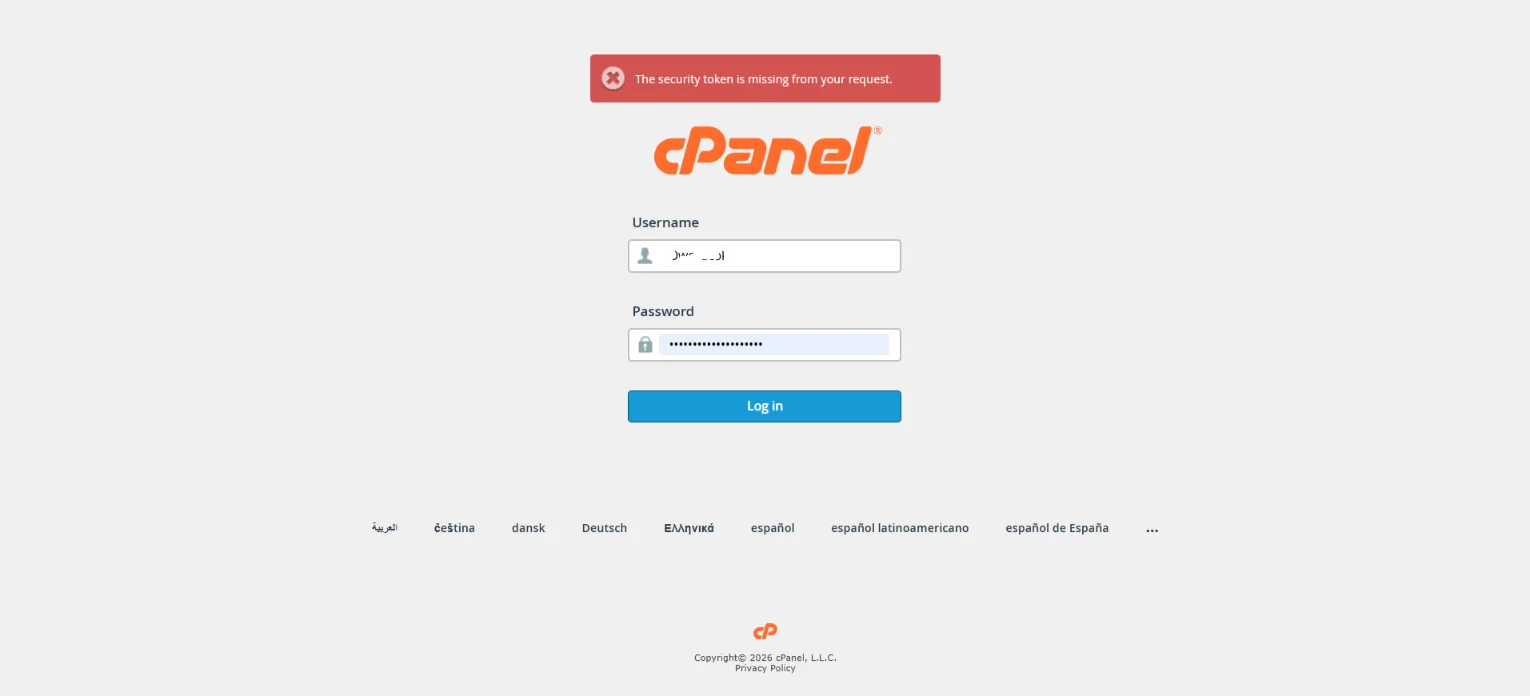
Step 2) Go to Metrics
Inside cPanel, find the Metrics section. Then, click on Visitors.
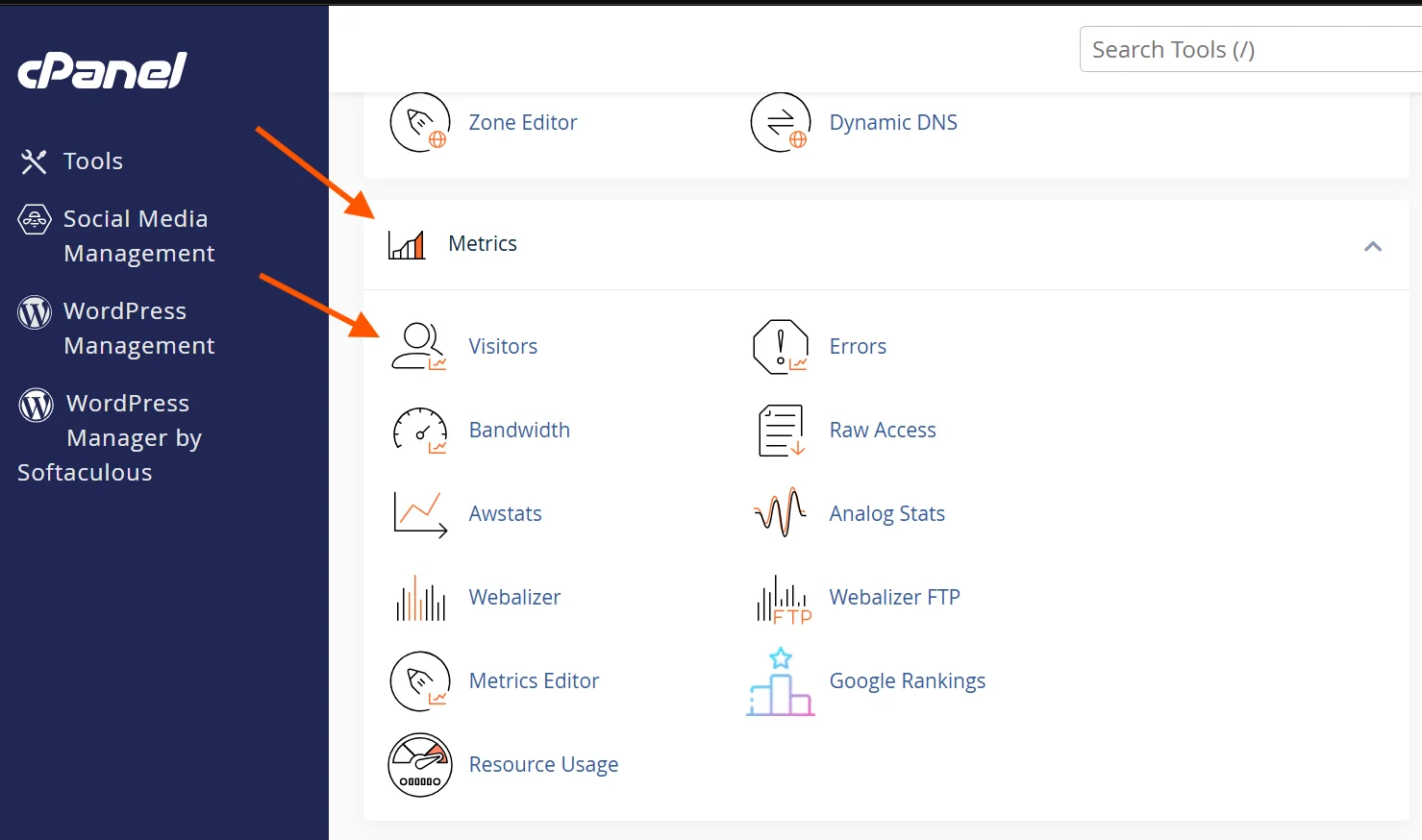
This tool shows a list of recent visitors to your website, including their IP addresses, the pages they visited, and the time of the visit.
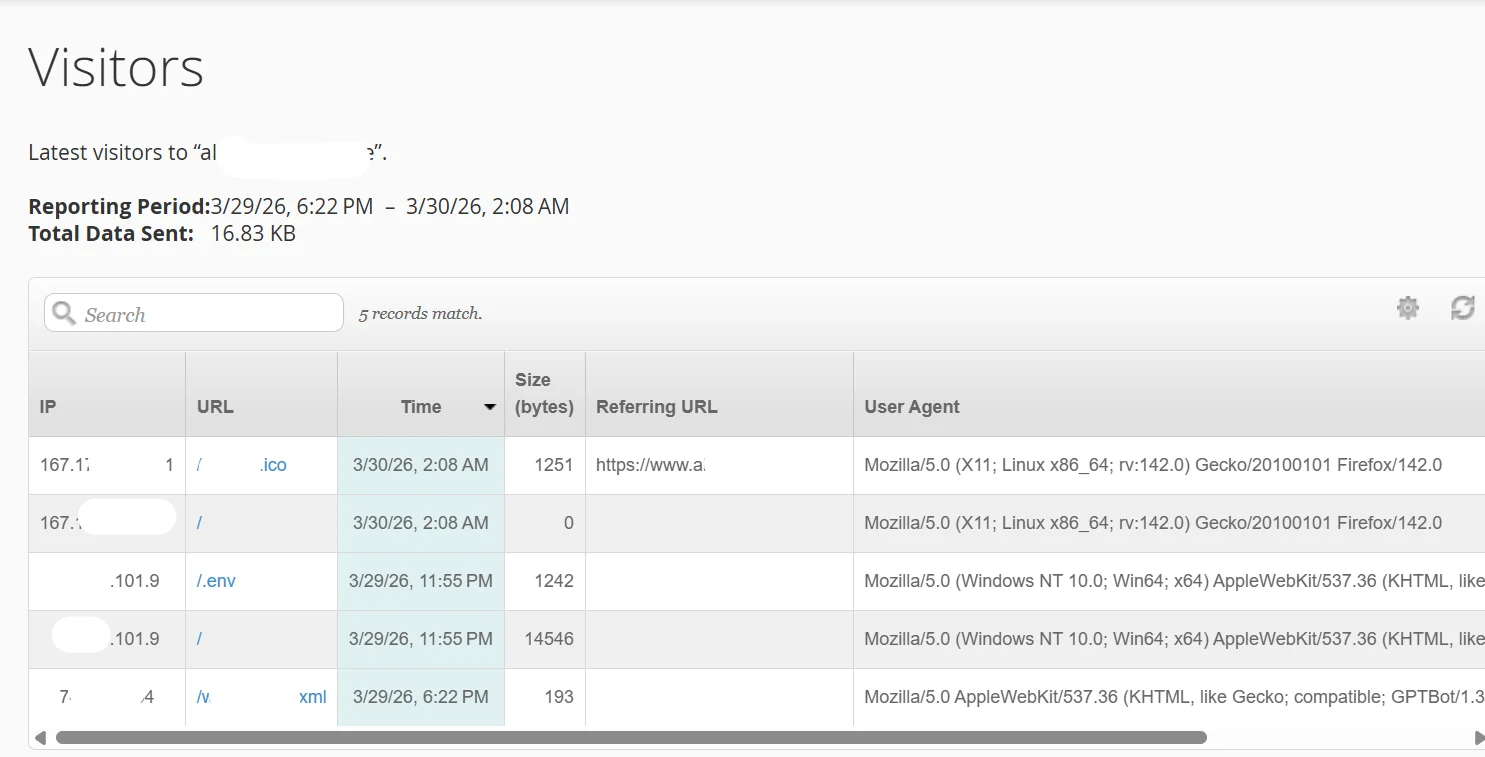
Step 3) Analyze the visitor list
Look for unusual activity.
Some IP addresses may appear repeatedly, especially if they are bots or spammers.
Note down the IP addresses you want to block.
Alternative Method: Access Logs
If you want more detailed information, go to Metrics, then click Raw Access.
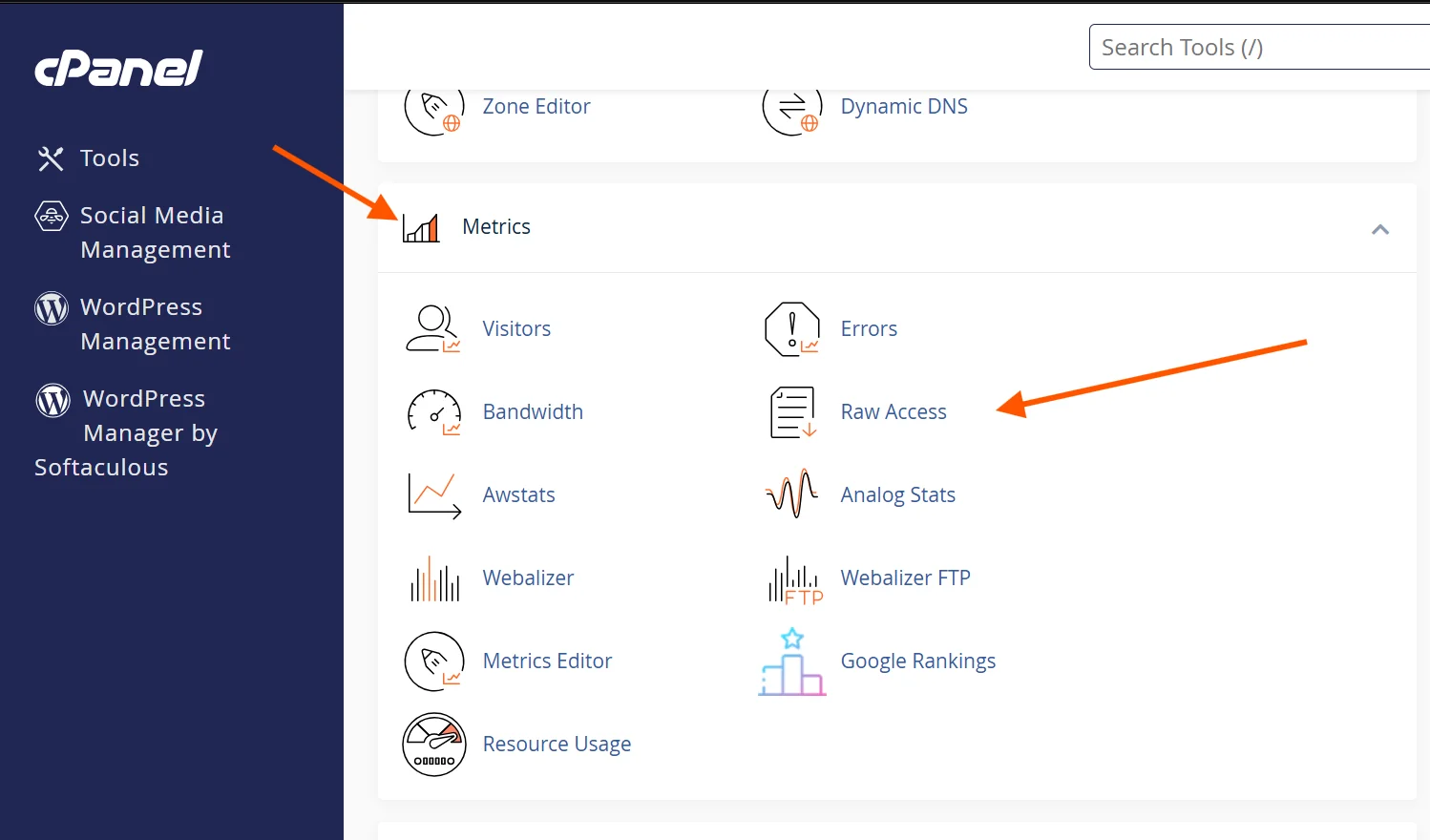
Here, you can download server logs that contain all IP addresses and activity on your site.
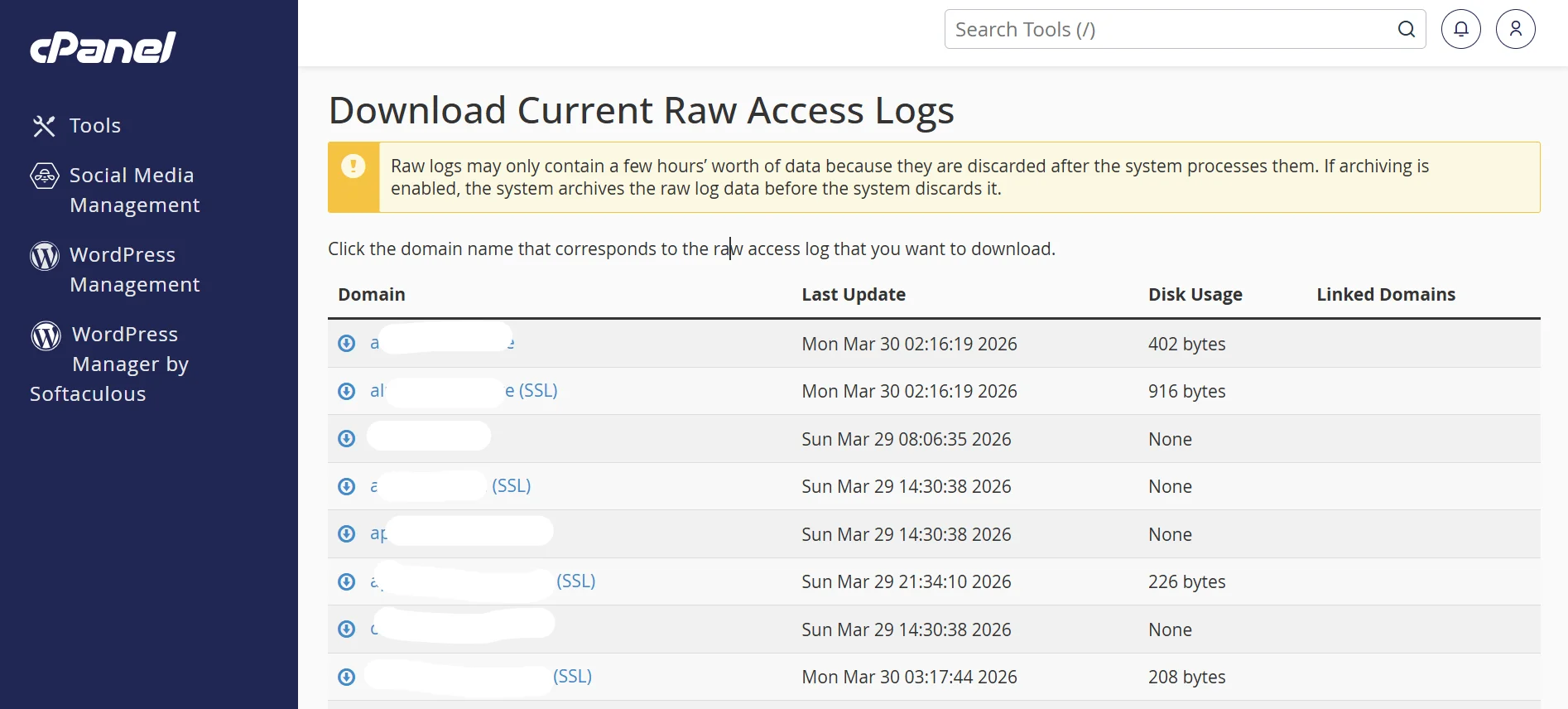
This is particularly useful for advanced users tracking suspicious behavior over time.
How to Block an IP Address in cPanel
Now that you know what IP address/addresses you want to block, it’s time to actually do it.
Step 1) Log in to cPanel
Use your hosting credentials to log in to your cPanel dashboard.
Step 2) Find the IP Blocker tool
Scroll down to the Security section.
Then, click on IP Blocker.

Alternatively, you can just use the search bar.
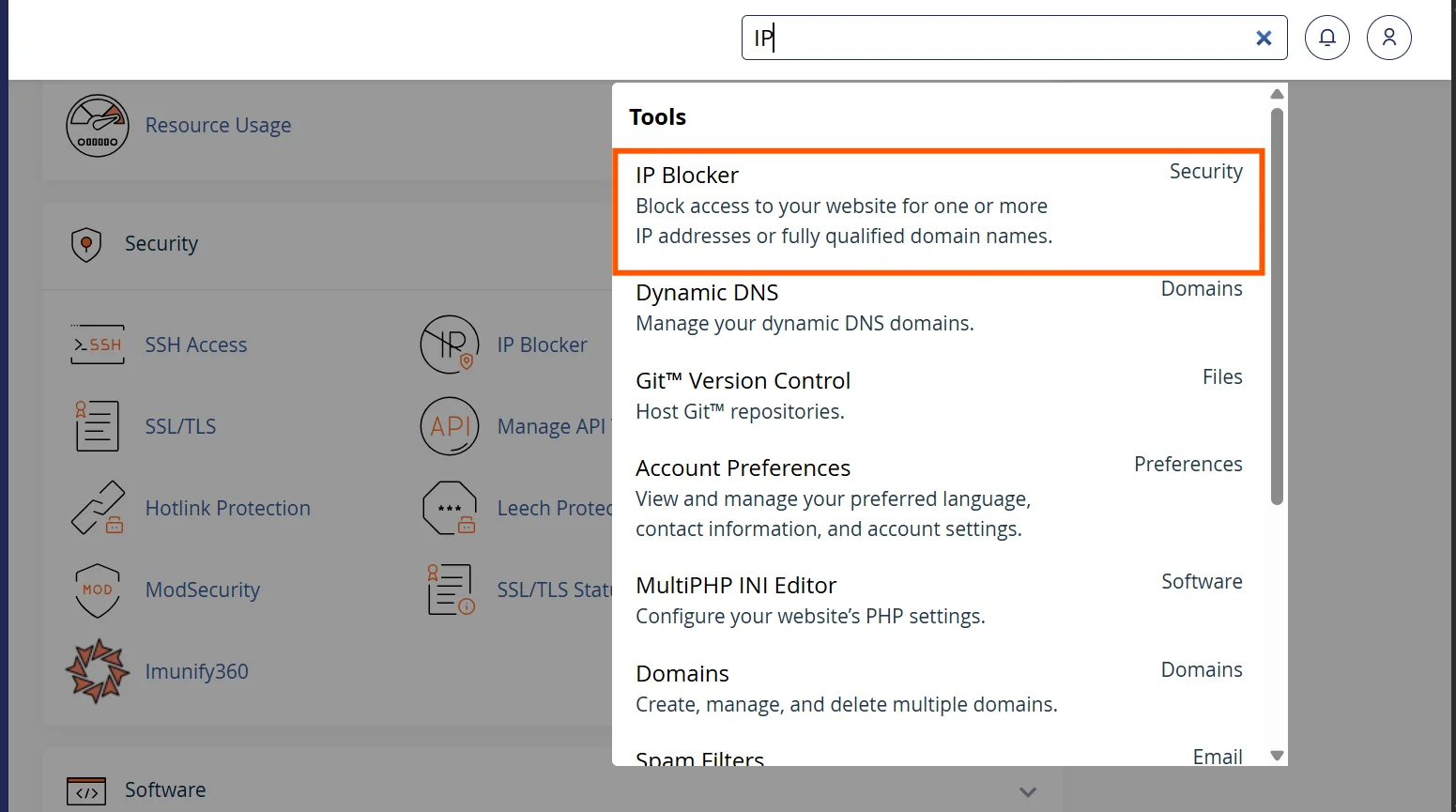
Step 3) Enter the IP address
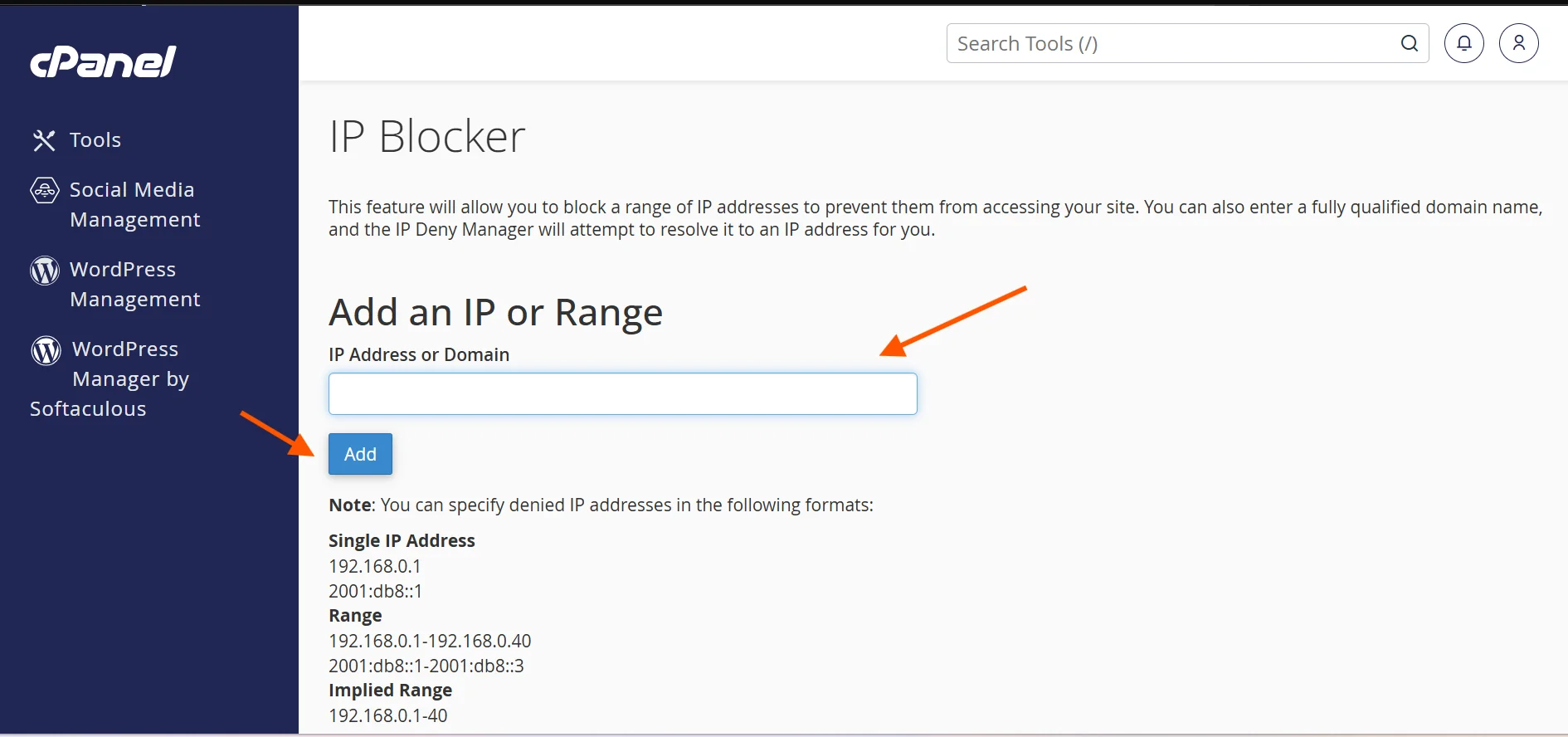
In the IP Blocker interface, you’ll see a field labeled “Add an IP or Range.”
Enter the IP address you want to block.
Tips:
- To block a single IP, simply enter the IP address (e.g., 192.168.1.1).
- To block a range of IPs, use this format: 192.168.1.1-192.168.1.50.
- You can also have an implied range like 92.168.1.1-10
Step 4) Click Add
After entering the IP address or range, click the Add button.
cPanel will immediately prevent visitors from that IP address from accessing your website.
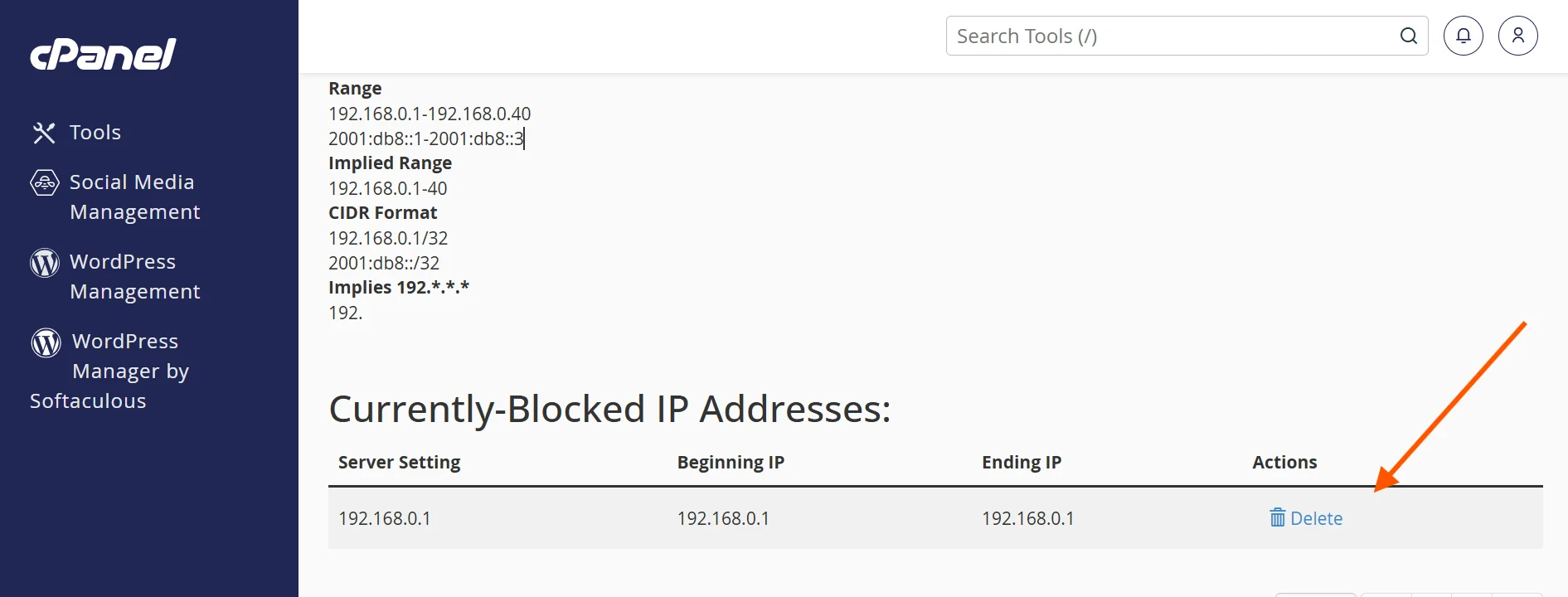
Step 5) Confirm blocking
Once added, the IP will appear in the list of blocked addresses in the IP blocker.
You can remove it later if needed by clicking Delete next to the blocked IP.
Why Block an IP Address?
There are several reasons why you would block an IP address from accessing your website.
These include:
a) Blocking Bots and Spammers
Automated bots are a constant headache for website owners.
While some bots (like search engine crawlers) are helpful, others are designed to scrape content, submit spam forms, or hammer your server with fake requests.
Signs you may have a bot or spam problem include:
- Hundreds of form submissions with nonsensical content
- A sudden spike in traffic that does not convert
- Comments filled with links to unrelated websites
Blocking the IP addresses of known spambots can significantly improve your website’s performance.
b) Limiting Website Access
Sometimes you want to restrict who can visit certain areas of your site.
For example, if you are building a members-only section or an internal tool, you might only want people from specific locations or networks to access it.
Blocking all other IP addresses except those you trust helps you create a controlled, secure access environment.
c) Protecting Data
Data breaches are a growing concern for businesses of all sizes.
If you notice repeated unauthorized login attempts or suspicious probing of your website’s files, that is a red flag.
By identifying the IP addresses behind these attacks and blocking them quickly, you protect your users’ data, your business reputation, and your own sensitive files.
d) Controlling Traffic
Too much traffic, even fake or low-quality traffic, can slow your website down or cause it to crash entirely.
If a particular IP or range of IPs is consuming an unusually high amount of bandwidth or server resources, blocking it can help you:
- Keep your site running smoothly for legitimate visitors
- Reduce hosting costs caused by excessive bandwidth usage
- Prevent server overload during targeted attacks
e) Enhancing Privacy
If you run a personal website, a private project, or a site in its early stages, you may not want the whole world to have access yet.
Blocking IP addresses allows you to control who can see your content and who cannot.
f) Complying with Legalities
In some industries and regions, legal requirements dictate who can access certain types of content.
For example:
- Online gambling or betting platforms may be required to block users from countries where such services are prohibited
- Financial services companies may need to restrict access based on regulatory compliance rules
- Media platforms may have licensing agreements that prevent them from showing content in certain territories
Blocking IP addresses by region or country can help ensure your website stays on the right side of the law.
Mistakes to Avoid When Blocking IP Addresses
While blocking IP addresses is pretty straightforward, there are a few mistakes you might want to watch out for.
These include:
1) Blocking your own IP address
This is more common than you might think.
If you accidentally block your IP, you will be locked out of your own website.
Always double-check the IP you are blocking before confirming. You can find your IP by visiting a site like whatismyip.com.
2) Blocking shared IP addresses
Many internet service providers assign a single IP address to multiple users.
If you block a shared IP, you could accidentally block legitimate visitors who share that address.
Use targeted blocks where possible.
3) Not keeping a record
Always note down which IPs you have blocked and why.
Without documentation, it becomes difficult to manage your blocklist over time.
4) Relying solely on IP blocking
IP blocking is effective, but it is not foolproof. Determined attackers can use VPNs or proxy servers to change their IP.
Combine IP blocking with other security measures like firewalls, CAPTCHAs, and rate limiting.
5) Blocking entire IP ranges unnecessarily
Blocking a large range of IPs can sweep up innocent visitors.
Only use range blocking if you have a clear reason to believe the entire range is a problem.
6) Forgetting to review and update your blocklist
IP addresses change hands.
An IP that belonged to a bad actor six months ago might now be assigned to a legitimate user.
Periodically review your blocklist and remove outdated entries.
How Your Hosting Provider Can Help
While cPanel’s IP Blocker is a fantastic tool for individual blocks, your hosting provider can offer higher protection.
This is especially important if you are dealing with a large-scale attack or sophisticated threats.
Here are some examples of how your hosting provider can support your security efforts:
a) Firewall configuration – Many hosting providers offer server-level firewalls that can block threats before they reach your site. This is faster and more powerful than cPanel-level blocking.
b) DDoS protection – Distributed Denial of Service attacks flood your server with traffic from thousands of IPs simultaneously. Your hosting provider may have built-in DDoS mitigation tools that can handle this at scale.
c) Malware scanning and removal – Some hosts offer automated malware scanning. If a suspicious IP has already managed to inject malicious code into your site, these tools can detect and remove it.
d) IP reputation databases – Enterprise-grade hosting providers often subscribe to real-time threat intelligence feeds. These databases flag known malicious IPs automatically, saving you the trouble of identifying them manually.
e) Custom .htaccess rules – For WordPress and Apache-based sites, your hosting team can help you set up .htaccess rules that offer more granular control over who can access your site and under what conditions.
f) Support and monitoring – If you are unsure about a particular IP or experiencing unusual activity, your hosting provider’s support team can investigate and advise.
Looking for a Reliable Hosting Provider?
If you want a hosting provider that takes security seriously without breaking the bank, try Truehost.
We have some of the most affordable hosting plans in India.
We offer cPanel and custom control panels, ensuring you get instant access to the IP Blocker and other security tools.
We also include free automated SSL certificates, keeping your site encrypted and trusted by browsers at no extra cost.
For additional security, we offer ConfigServer eXploit Scanner (CXS) and KernelCare – Imunify360. This provides real-time, automated malware protection and intrusion detection at the server level.
Best of all, you are never on your own. Truehost provides 24/7/365 support from qualified technical experts. They are always on standby to help you handle anything
Have a specific security requirement? Truehost can accommodate custom security configurations on request. Just reach out, and our team will sort you out.