Web HostingBudget-friendly shared hosting plans
 Domains SearchFrom .com to unique country domains, explore and register extensions worldwide.
 WordPress HostingPower your blog or business with WordPress hosting.
 Email HostingSimple, secure email hosting that helps you stay connected and professional.
 Reseller HostingStart your own hosting business with easy and reliable reseller hosting plans.
 AffiliateJoin our affiliate program and earn commissions every time you bring in new customers.
 cPanel HostingHosting powered by cPanel, the world’s most user-friendly control panel.
 Windows HostingBuilt for Windows applications and websites
 IN Domain PricesDon’t miss out on the best domain deals in India!
 WHOIS LookupFind out who owns a domain name with a quick and easy WHOIS search.
 Domain TransferTransfer your domain to us and enjoy reliable support every step of the way.
 .Com DomainGet the most trusted domain for worldwide credibility
 All TldsSearch and register domain extensions worldwide.
 SSL CertificatesProtect your website with trusted SSL certificates and keep customer data safe.
 VPS HostingPowerful virtual servers. Full root access. Reliable uptime.
 Managed VPS HostingNot a tech expert? Choose our fully managed VPS service.
 Dedicated ServersTake full power and total control of your own physical server.
 AI Website BuilderCreate stunning websites instantly with our easy AI builder.
 Online ShopBuild your eCommerce store easily, no coding, just growth.
 Web Design ServicesGet a website built for your brand and designed for your goals.
 Contact UsReach out to us for support or questions.
 SupportGet answers and how-to guides for all our services.
 BlogRead our latest blogs on web hosting, online business, digital marketing, and other helpful topics.
You’ve just clicked a link. And instead of landing on the page you expected, you see: “404 Not Found.”
No explanation. No direction. Just a dead end.
That’s frustrating, right?
Now imagine that happening to a visitor on your website.
That’s a problem.
The good news? It’s an easy fix.
In this guide, you’ll learn exactly what a 404 error is, why you need a custom one, and the step-by-step process for setting it up through cPanel.
What is a 404 Error Page?
A 404 error is an HTTP status code.
It means the server was successfully reached, but the specific page or resource a visitor requested could not be found.
This could happen because of:
- Mistyped URL – The visitor types the wrong address in their browser (e.g., yoursite.com/abuot-us instead of yoursite.com/about-us).
- Deleted or moved pages – You removed or renamed a page but didn’t set up a redirect.
- Broken internal or external links – You or another website links to an old URL on your site that no longer exists.
- Changed permalink structure – If you updated your URL structure without proper redirects, old links will break.
- Mislinked content – A typo in a hyperlink within your own site sends users to a non-existent page.
When any of this happens, the server hosting your website sends a “404 Not Found” response.
By default, this page is plain and generic. It usually just says something like:
“404 Not Found – The page you requested could not be found.”
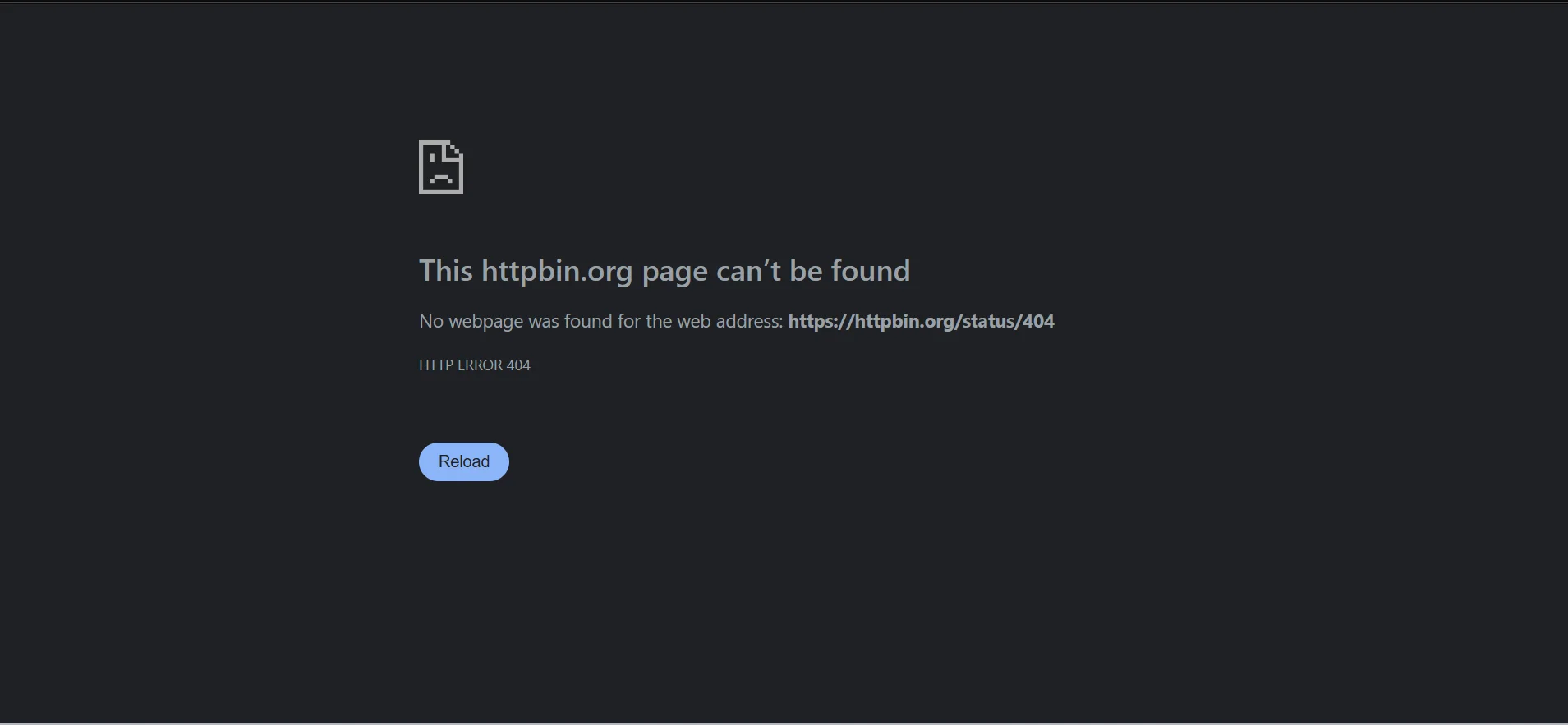
While it tells the visitor the page is missing, it doesn’t help them find what they were looking for.
Why You Need a Custom 404 Error Page
You might wonder, “Is it really necessary to create a custom page for errors?” The answer is yes.
Here’s why:
a) Improved User Experience
A friendly, helpful 404 page guides visitors back to relevant content.
b) Keeping Your Brand Consistent
A generic “404 Not Found” message looks unpolished and unprofessional.
A branded, well-designed error page shows that you care about every detail of the user experience, even the error states.
c) Reduces Bounce Rates
A default 404 page offers nothing of importance to the end user. No navigation, no links, no help.
A custom page can include:
- Your site’s navigation menu
- A search bar
- Links to popular content.
- An apology
This gives visitors a reason to stay instead of hitting the back button.
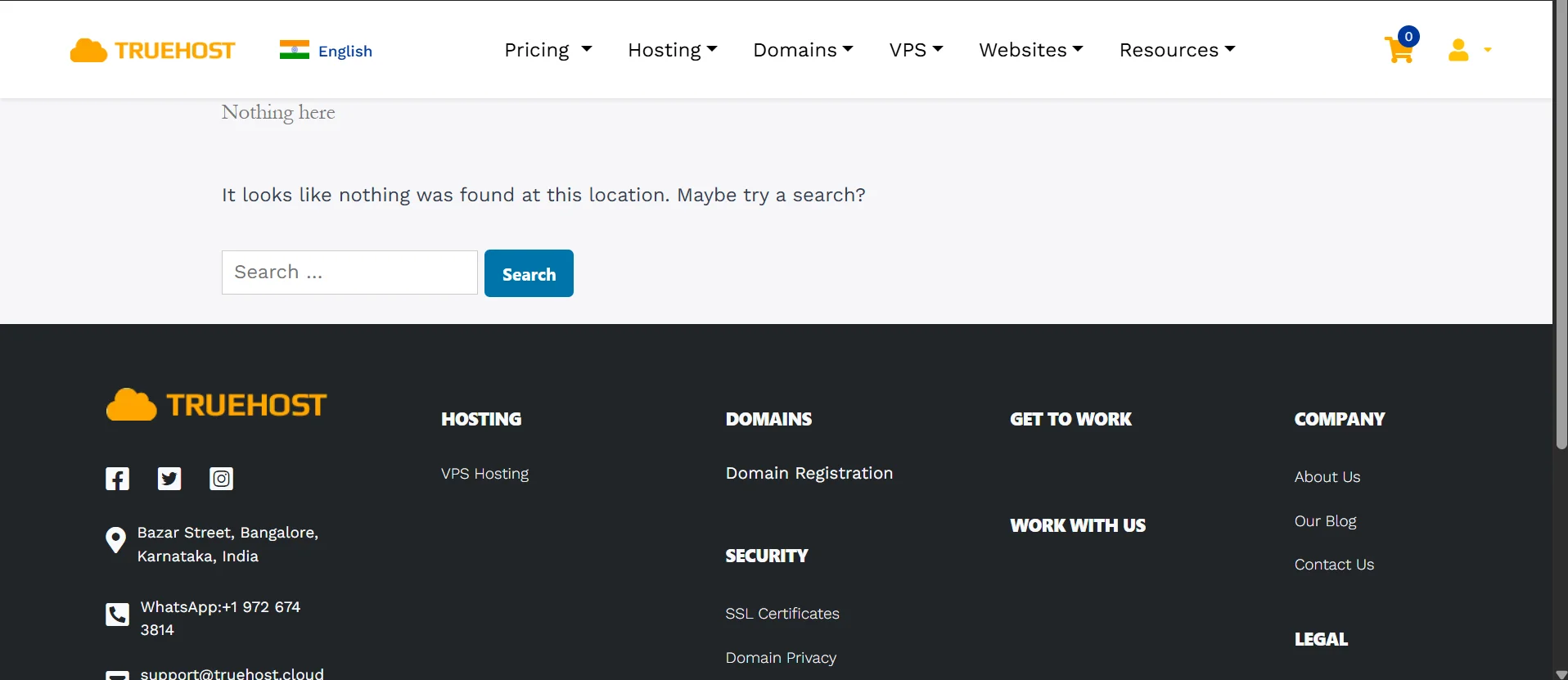
Here’s our 404 error page here at Truehost: (I searched for https://truehost.co.in/blogz instead of https://truehost.co.in/blogs)
d) Boosts SEO
Search engines notice how users interact with your site.
A helpful 404 page can encourage visitors to stay and navigate, which is better than abandoning your site completely.
e) Provides Opportunities for Creativity
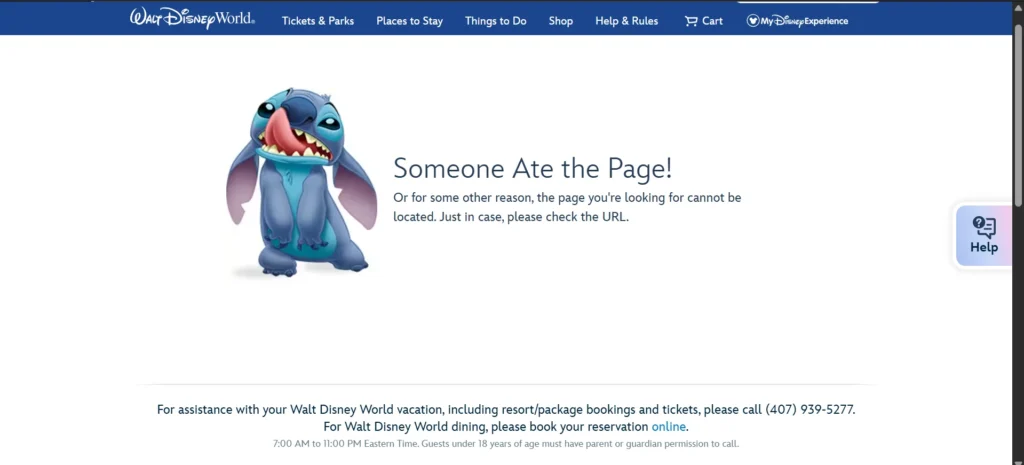
You can add humor, illustrations, or clever messages.
It turns a frustrating experience into something memorable for your visitors.
Here’s an example from Walt Disney;
Different Ways of Setting up a Custom 404 Error Page
There are different ways to create a custom 404 page for your website.
The method you’ll choose will be dependent on your hosting setup, coding skills, and CMS (Content Management System).
Here are the main options:
a) Using a Static HTML Page
Here, you create a standalone HTML page that acts as your 404 error page.
It can include text, images, links, and styles.
Then, you configure your server to show this page whenever a 404 error occurs.
b) Using a CMS Plugin or Feature
Platforms like WordPress, Joomla, or Drupal often have built-in options or plugins to customize 404 pages.
You can design the page within the CMS without touching your hosting settings.
c) Using cPanel’s Built-in Error Page Feature
cPanel makes it easy to create and manage custom error pages directly from your hosting dashboard.
This method is ideal if you’re not comfortable editing server files manually.
For most beginners using cPanel, the built-in error page feature is the easiest and most effective choice.
d) Redirecting to a Specific Page
You can also choose to redirect 404 errors to an existing page, like your homepage.
While this keeps visitors on your site, it may confuse them because they don’t see a clear “page not found” message.
How to Set Up a Custom 404 Error Page in cPanel
As mentioned before, using cPanel is one of the simplest ways of creating a custom 404 page.
To do so, follow these steps:
Step 1) Create Your 404 Page
Before configuring cPanel, you need the actual 404 page ready.
You can create it using HTML or any web editor.
Here’s what to include:
- A friendly message letting visitors know the page is missing.
- Links to popular pages, categories, or your homepage.
- Your branding (like logo and colors).
- Optional search bar to help visitors find content.
Save your file as 404.html for easy recognition.
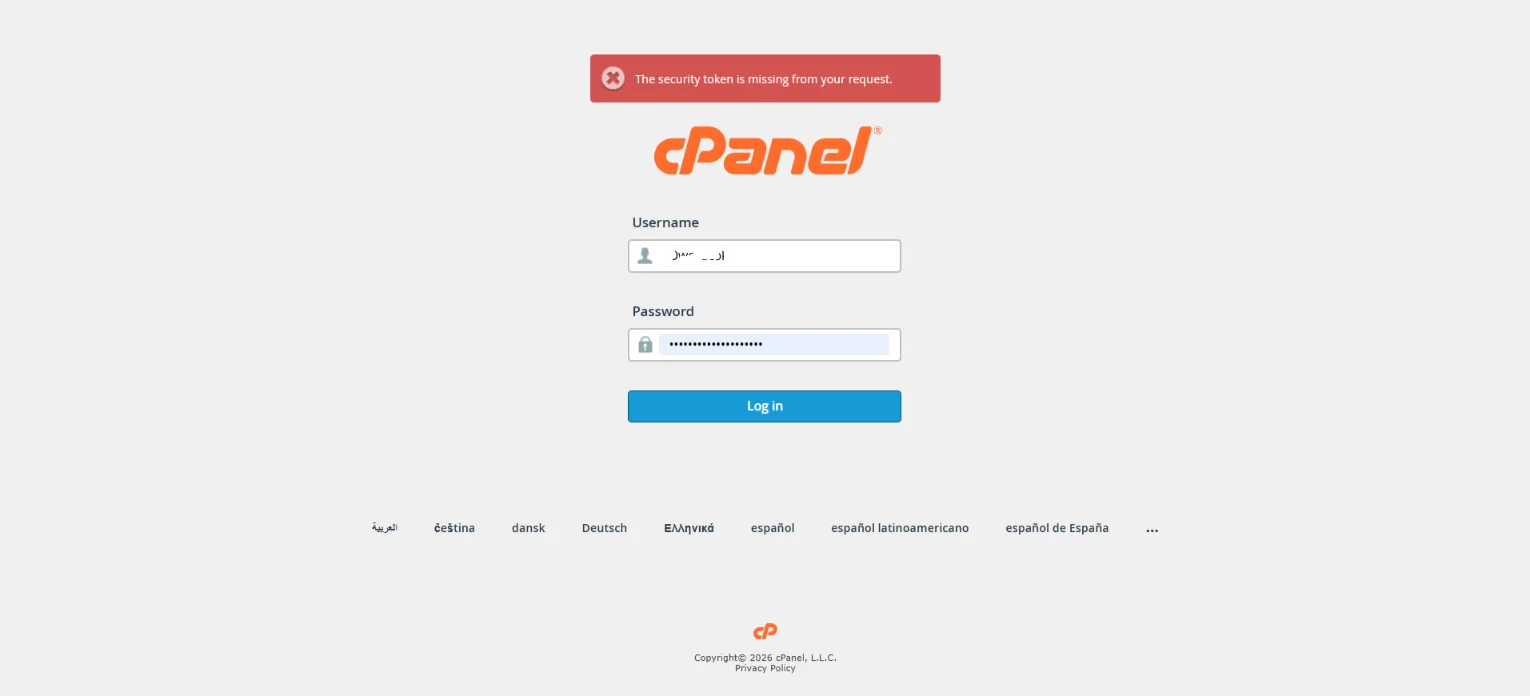
Step 2) Log in to cPanel
Access your cPanel account using the login details provided by your hosting provider.
The URL is usually something like yourdomain.com/cpanel.
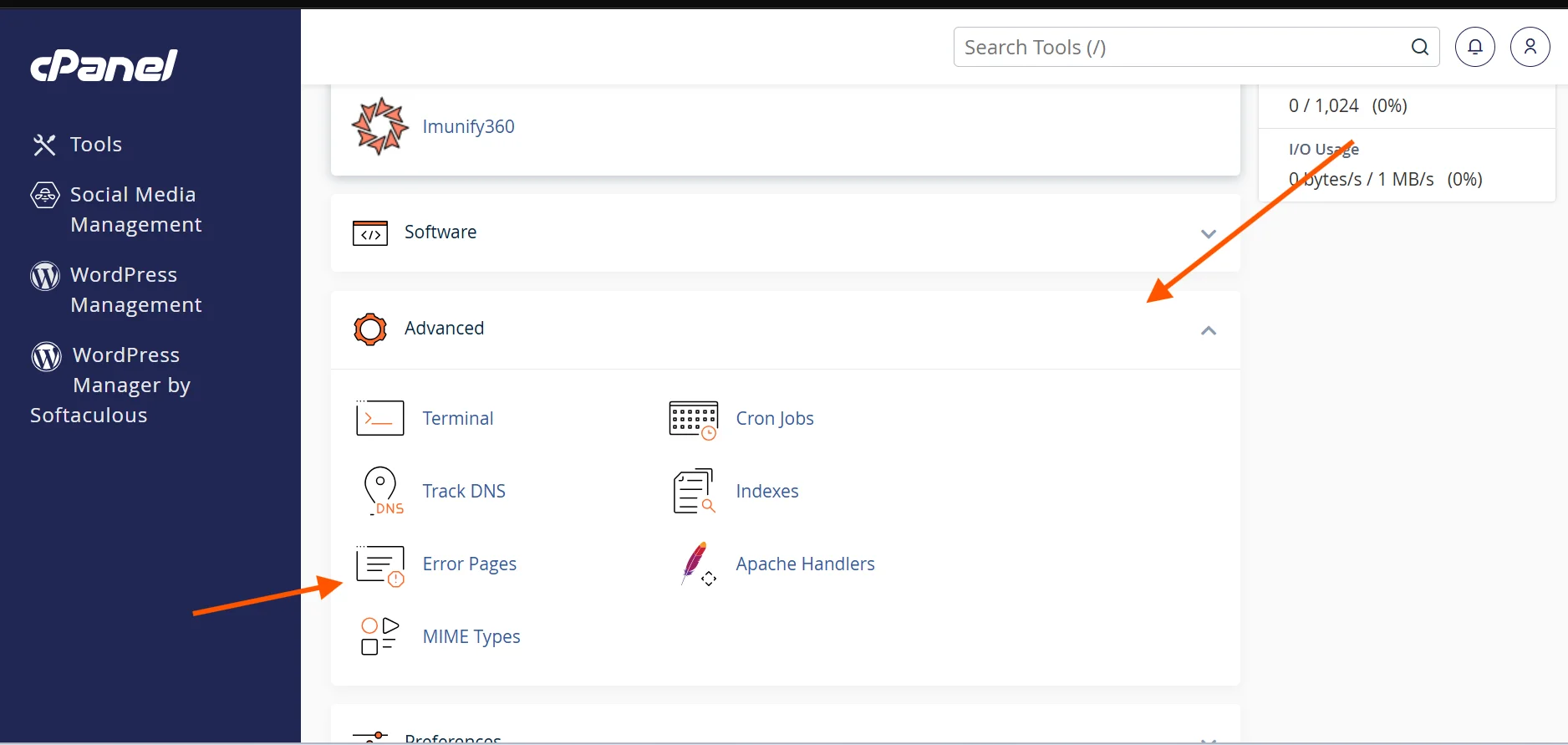
Step 3) Open the “Error Pages” Tool
Once logged in, scroll down to the Advanced section.
Then, click on Error Pages.
You can also just use the search bar
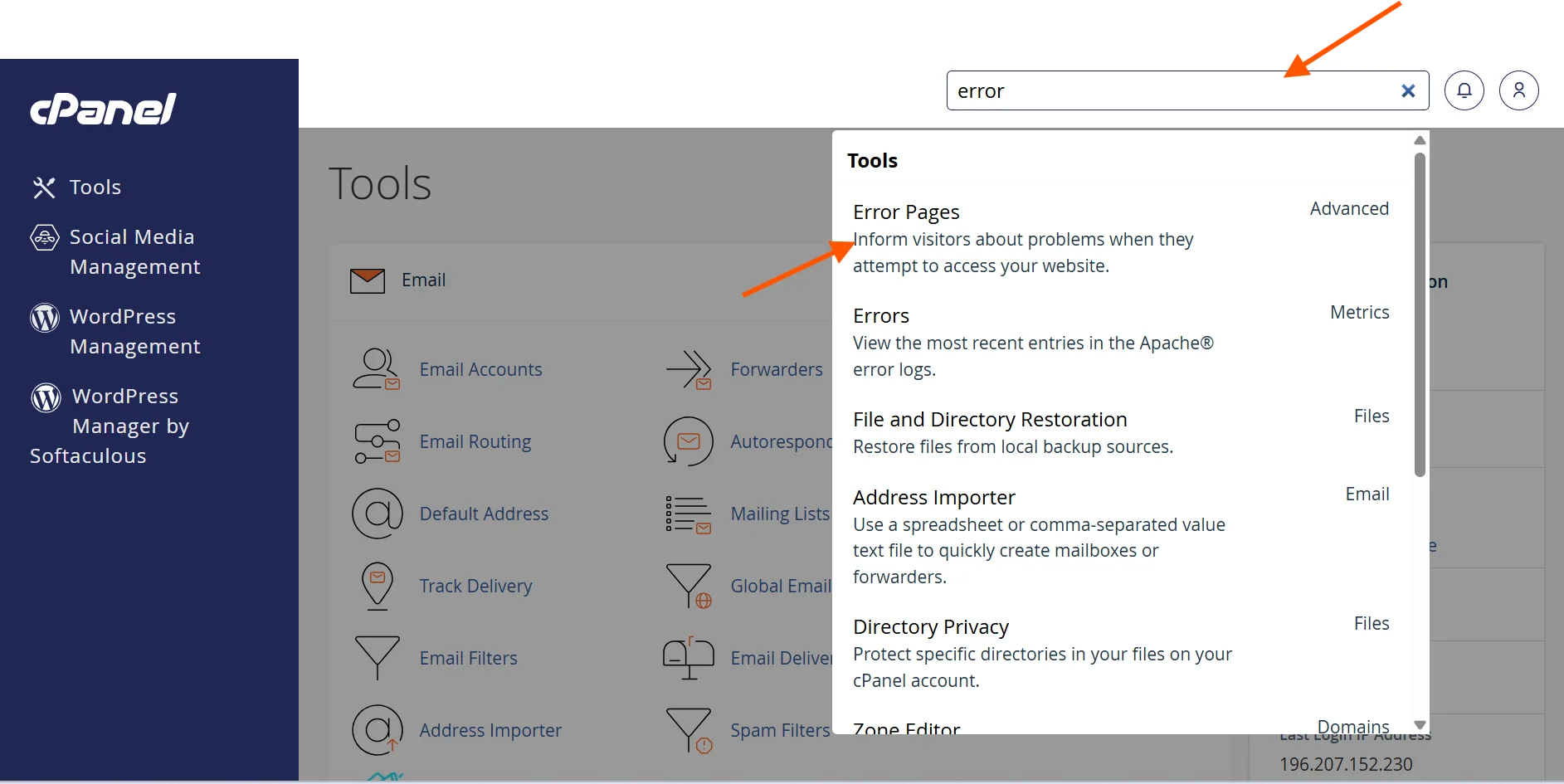
This section allows you to manage all types of server errors, including 404, 403, 500, and more.
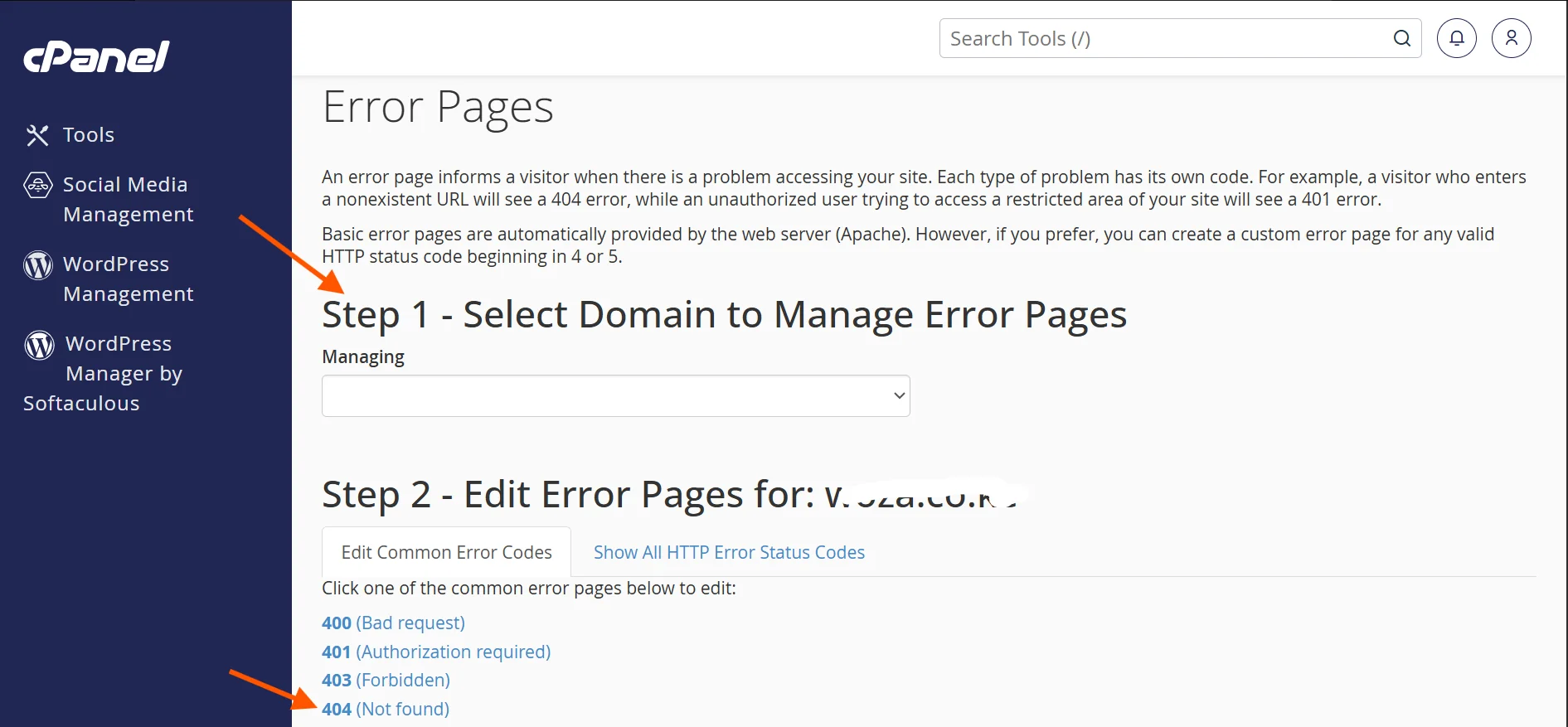
Step 4) Select the domain and 404 Error
In the Error Pages interface, you’ll see a list of domains (if you have multiple) and a list of error codes.
Choose the domain you want to work on if applicable.
Then, click on 404 (Not Found) to start customizing.
Step 5) Upload or Paste Your Custom Page
If you created the page in a code editor, copy and paste the HTML code directly into the editor in cPanel.
If you didn’t, you can start creating now.
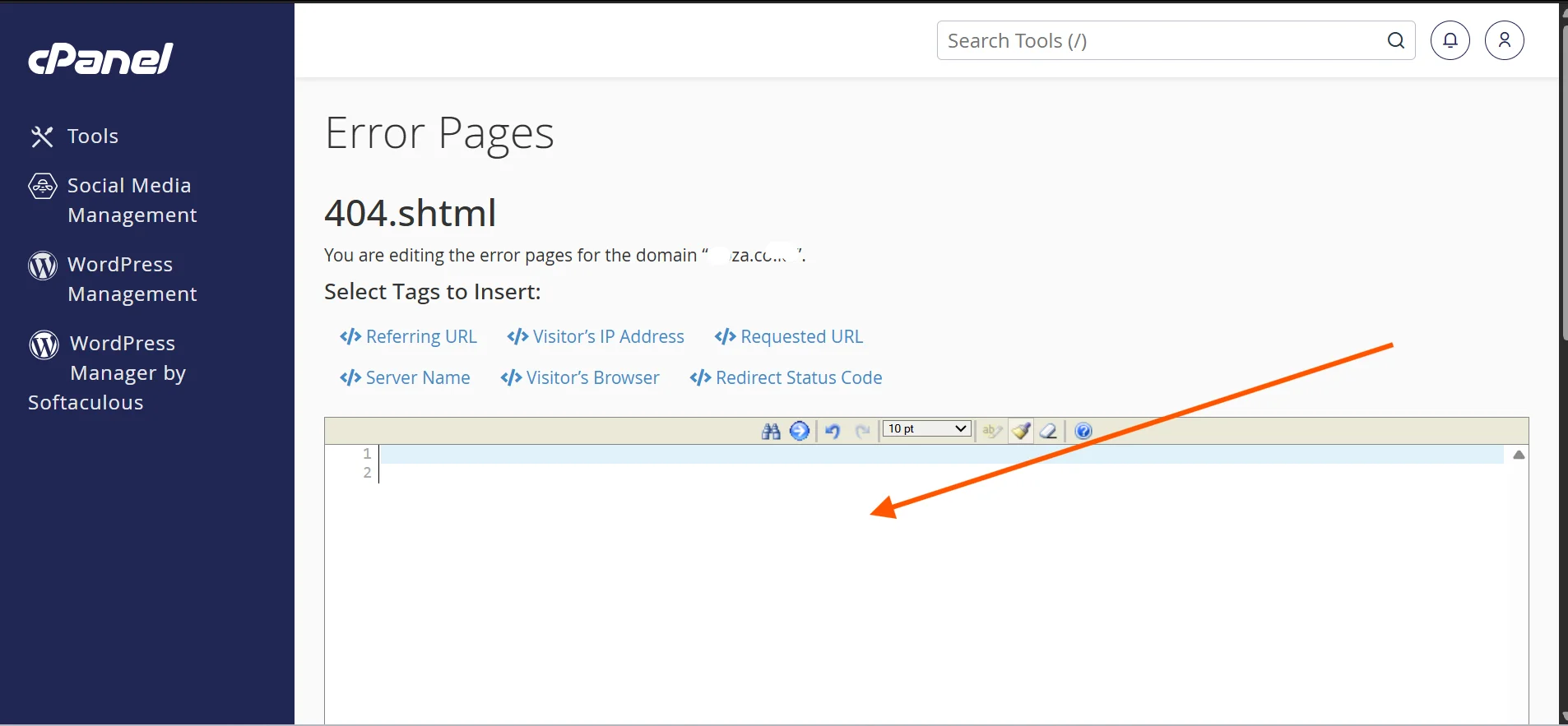
Once done, save your changes.
Step 6) Test Your 404 Page
After setting it up, make sure your custom page works.
Type a URL on your domain that doesn’t exist, like:
www.yourdomain.com/nonexistentpage
You should see your custom 404 page instead of the default server page.
How to Avoid a 404 Error Page
While setting up a custom 404 page is important, preventing these errors should be your main priority.
Too many 404 errors can frustrate visitors, hurt your credibility, and even impact your search engine rankings.
Here’s how you prevent 404 errors:
a) Fix Broken Links
One of the most common causes of 404 errors is broken links, either within your website or from external sources.
Regularly checking your site for broken links helps you identify and fix them before users encounter issues.
You can use Google Search Console or other site audit tools to monitor and resolve these errors.
b) Use Proper Redirects
If you move or delete a page, you should always set up a redirect.
A 301 redirect ensures that visitors and search engines are automatically sent to the correct page instead of landing on a 404 error.
This is especially important when redesigning your website or restructuring your content.
c) Maintain Consistent URL Structures
Keeping your URLs simple, consistent, and descriptive reduces the chances of errors.
Avoid changing URLs unnecessarily, as this can lead to broken links across your site and from external sources.
d) Keep Your Sitemap Updated
Maintaining a sitemap helps search engines understand your site structure and ensures that all valid pages are indexed correctly.
When pages are removed, updating your sitemap helps prevent outdated links from being served to users.
e) Monitor Website Analytics
Regularly reviewing your website analytics can help you spot pages that frequently return 404 errors.
If a page consistently returns 404 errors, this is a sign that users are trying to access something that no longer exists.
Fix the issue or redirect them to relevant content.
f) Be Careful When Deleting Content
Before removing a page, consider whether it still receives traffic.
If it does, redirect it to a related page instead of deleting it completely.
This ensures visitors continue to find useful information instead of hitting a dead end.
Why Hosting Matters
Even if you’ve designed the perfect custom page, your hosting setup still has a direct effect on performance, reliability, and overall user experience.
Here’s how:
a) Server Compatibility
The type of server your hosting provider uses affects how error pages are handled.
Most cPanel-based hosting runs on Apache or LiteSpeed servers, which support custom 404 pages seamlessly.
This allows you to set them up without complex configurations.
At Truehost, we offer optimized cPanel hosting environments powered by Apache and LiteSpeed servers, ensuring your custom 404 pages work smoothly.
b) Reliability and Uptime
If your hosting server is unstable or frequently goes down, visitors may encounter errors unrelated to missing pages.
A reliable hosting provider ensures your website (and your custom 404 page) remains accessible at all times.
At Truehost, we offer a 99.97% uptime guarantee, which is backed up by a genuine SLAs (Service Level Agreements).
This ensures your website stays online consistently, so visitors always see the required pages or your custom 404 page and not server-related errors.
c) File Accessibility and Permissions
Your custom 404 page must be stored correctly and have the right permissions for the server to display it.
Good hosting with cPanel simplifies this process, making it easy to manage files without technical complications.
d) Security and HTTPS Support
If your website uses HTTPS, your 404 page must also load securely.
Poor hosting configurations can cause security warnings, which may drive visitors away faster than the error itself.
At Truehost, we make this process seamless by providing secure hosting environments with free SSL certificates and additional security tools.
This ensures your custom 404 pages load safely without triggering browser warnings.
e) Website Performance
Slow hosting can make your entire site, including error pages, feel sluggish and unprofessional.
At Truehost, we offer high-performance servers powered by SSD storage, ensuring quick load times for your entire website.
This includes your custom 404 pages, ensuring your users enjoy a smooth experience even when errors occur.
f) Ease of Use and Tools
Hosting providers that offer user-friendly tools like cPanel make it easier to manage custom error pages, redirects, and other important settings.
All the screenshots for the steps provided in this article are from a website hosted on Truehost.
This shows how simple and beginner-friendly our platform is, enabling you to set up and manage custom 404 pages with ease.
Conclusion
A custom 404 error page is a powerful tool to maintain your website’s professionalism and improve user experience.
Instead of losing visitors to a generic error message, you can guide them to your best content, showcase your brand, and keep them engaged.
Using cPanel makes this process straightforward, even for beginners.
By following the steps above, you can create a page that is both functional and visually appealing.
However, your results ultimately depend on the quality of your hosting.
If you want a reliable, fast, and beginner-friendly platform to easily set up and manage your custom 404 pages, Truehost is a solid choice.
Get started today and ensure your website delivers a seamless experience, even when things don’t go as planned.