Web HostingBudget-friendly shared hosting plans
 Domains SearchFrom .com to unique country domains, explore and register extensions worldwide.
 WordPress HostingPower your blog or business with WordPress hosting.
 Email HostingSimple, secure email hosting that helps you stay connected and professional.
 Reseller HostingStart your own hosting business with easy and reliable reseller hosting plans.
 AffiliateJoin our affiliate program and earn commissions every time you bring in new customers.
 cPanel HostingHosting powered by cPanel, the world’s most user-friendly control panel.
 Windows HostingBuilt for Windows applications and websites
 IN Domain PricesDon’t miss out on the best domain deals in India!
 WHOIS LookupFind out who owns a domain name with a quick and easy WHOIS search.
 Domain TransferTransfer your domain to us and enjoy reliable support every step of the way.
 .Com DomainGet the most trusted domain for worldwide credibility
 All TldsSearch and register domain extensions worldwide.
 SSL CertificatesProtect your website with trusted SSL certificates and keep customer data safe.
 VPS HostingPowerful virtual servers. Full root access. Reliable uptime.
 Managed VPS HostingNot a tech expert? Choose our fully managed VPS service.
 Dedicated ServersTake full power and total control of your own physical server.
 AI Website BuilderCreate stunning websites instantly with our easy AI builder.
 Online ShopBuild your eCommerce store easily, no coding, just growth.
 Web Design ServicesGet a website built for your brand and designed for your goals.
 Contact UsReach out to us for support or questions.
 SupportGet answers and how-to guides for all our services.
 BlogRead our latest blogs on web hosting, online business, digital marketing, and other helpful topics.
You’ve built your WordPress website. You’ve published your pages, added your services, and spent hours perfecting the design.
Then someone visits it. They wait. And wait. And then? They leave.
A slow WordPress website is more than just frustrating. It actively kills your Google rankings, costs you clients, and makes everything you’ve worked for much harder.
If you’re running a business, an online store, or a personal brand, a slow site can silently bleed your credibility dry.
The good news? Most WordPress speed problems are fixable.
In this guide, we’ll break down 13 proven fixes to make your WordPress website load faster.
Why Your WordPress Website Speed Is Important
If you’re here, you probably already understand the importance of speed for your WordPress website.
But if you’re not fully convinced, here it is:
a) Website speed directly affects user experience
When someone clicks on your website, they expect it to load quickly.
Studies show that most users leave if a page takes more than 3 seconds to load. That means even a small delay could cost you visitors.
b) Website speed affects conversions
Whether you run an online store, a blog, or a business website, faster pages typically convert better.
If your checkout page is slow, customers may abandon their purchases. If your blog loads slowly, readers may leave before finishing the article.
c) Google uses page speed as a ranking factor
Search engines prioritize websites that deliver fast, smooth experiences. A slow site may struggle to rank well in search results, even if the content is good.
d) Slow websites consume more server resources
This can increase hosting costs and cause performance issues during high traffic periods.
How To Measure WordPress Website Speed
Before you start fixing anything, you need a clear picture of where your site currently stands.
Several tools can help you measure website speed:
I) PageSpeed Insights (by Google) – Shows performance scores for both mobile and desktop, along with actionable recommendations.
II) GTmetrix – Provides detailed reports on load times, page size, and specific performance issues.
III) GiftOfSpeed – A simple, beginner-friendly tool for quick speed testing.
IV) Pingdom – Great for testing speed from different geographic locations.
All of these tools are valuable, but for this guide, we’ll focus primarily on Google’s PageSpeed Insights. This is because Google’s opinion of your site is the one that matters most for SEO.
Google’s PageSpeed Insights: A Step-by-Step Walkthrough
Google’s PageSpeed Insights (PSI) is a free tool that analyzes the content of a web page and generates suggestions to make it faster.
Here’s how to use it:
Step 1) Go to pagespeed.web.dev
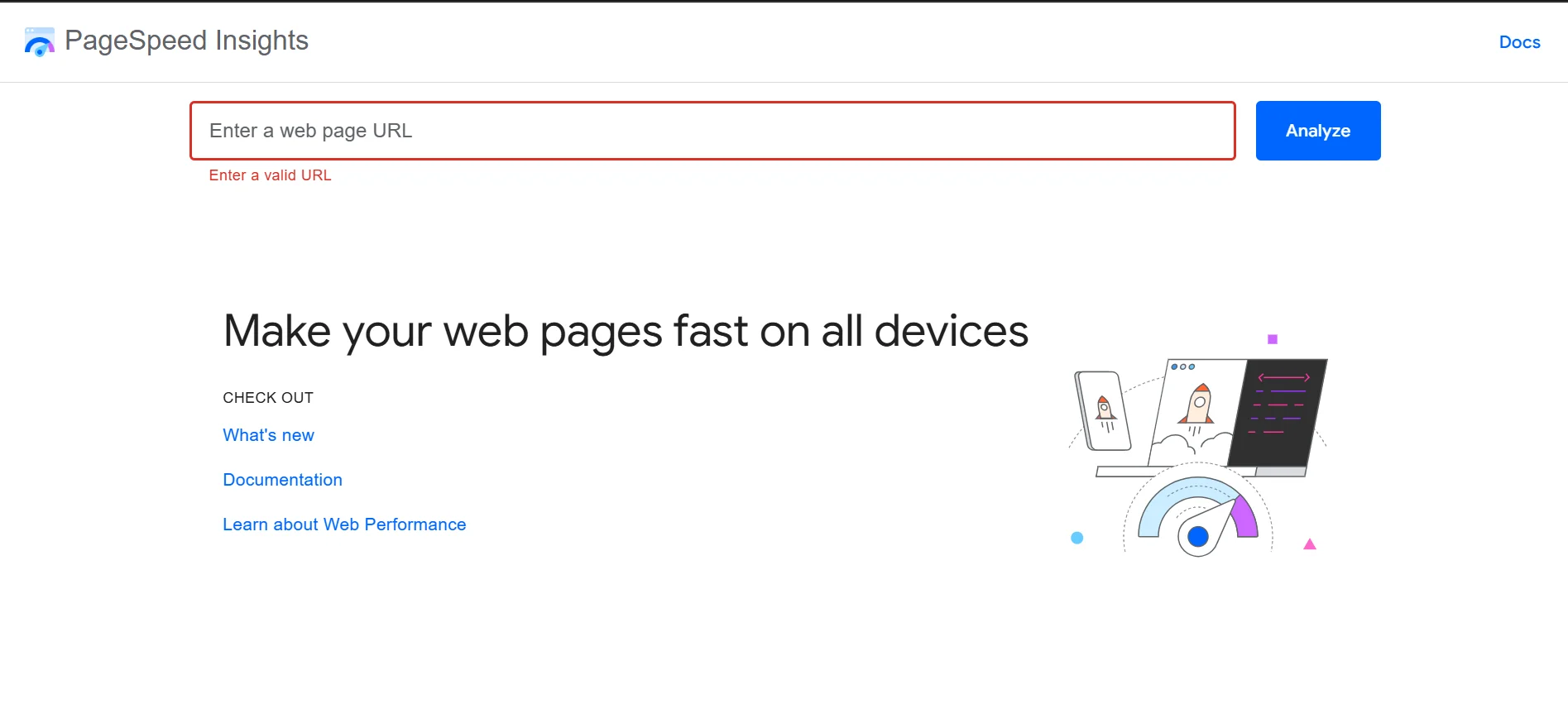
Step 2) Type or paste your website’s URL into the text field and click Analyze.
Step 3) Wait for the analysis to complete. You’ll see two separate scores. One for Mobile and one for Desktop.
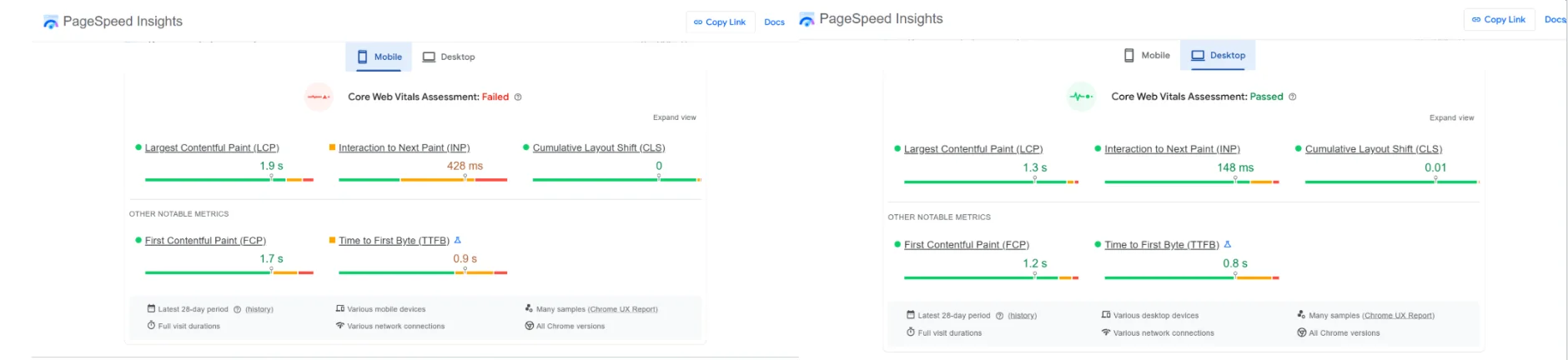
Bonus Tip: Pay close attention to your Mobile score, as Google primarily uses mobile performance to rank websites.
Step 4) Review the Core Web Vitals section. This includes three key metrics:
- LCP (Largest Contentful Paint): How quickly the main content loads. Aim for under 2.5 seconds.
- FID / INP (Interaction to Next Paint): How responsive your site is to user interactions.
- CLS (Cumulative Layout Shift): How stable the visual layout is as the page loads.
You could also revies:
- FCP (First Contentful Paint): How long it takes for the first piece of content to load.
- TTFB (Time to First Byte): The time between a resource request and the delivery of the first byte.
Step 5) Scroll down to the Opportunities and Diagnostics sections. This lists specific issues slowing your site down, along with estimated time savings for fixing each one.
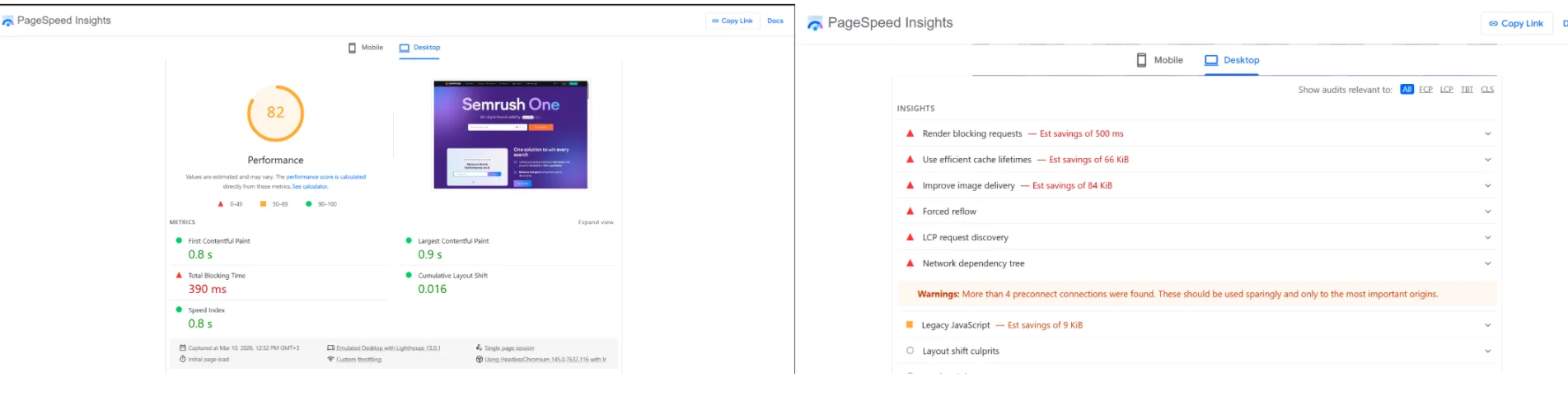
Now that you know where you stand, it’s time to start making improvements.
How To Speed Up Your WordPress Website
We’re going to divide the 13 fixes into four categories, so you can tackle them in an organized way.
1) Content and Media Optimization
Before you go hunting for technical issues, check your media files first.
Images and videos are almost always part of the culprits behind sluggish page load times. But they are the easiest to solve.
a) Resize, Compress, and Optimize Images
Many users upload images directly from their cameras or design software without resizing them. These images can be several megabytes in size, which dramatically increases page loading time
Before uploading, resize images to the actual dimensions they’ll appear on screen (usually no wider than 1200px for full-width images). You can then compress to reduce the size.
For format, consider converting images to WebP. It’s a modern format that produces significantly smaller files than JPEG or PNG.
There are many tools to do this. I’ve been using Bulkresize and found it very simple and convenient.

If you already have a library of unoptimized images, plugins like Smush or ShortPixel can automatically compress all your existing images in bulk. This alone can dramatically cut your page load times.
b) Implement Lazy Loading
By default, when someone visits your website, their browser downloads every single image on the page. Even the ones 10 scrolls below where they actually are.
Lazy loading changes this, ensuring that images only load when the visitor scrolls near them.
The result? Your above-the-fold content loads much faster because the browser isn’t wasting time downloading images the visitor hasn’t reached yet.
WordPress has native lazy loading built in from version 5.5 onwards. You can also enhance this with plugins like a3 Lazy Load.
c) Host Videos Externally
Hosting video files directly on your WordPress server is one of the fastest ways to tank your site’s performance.
Video files are enormous, and serving them puts a massive strain on your hosting resources.
Instead, upload your videos to YouTube, Vimeo, or Wistia and simply embed them on your pages.
The videos will stream from those platforms’ powerful CDN infrastructure, allowing your server to breathe easy and your pages to load faster.
2) General Maintenance
Think of your WordPress website like a car. Without regular maintenance, it accumulates junk, develops inefficiencies, and eventually starts running poorly.
The three fixes in this category are about keeping your site lean, clean, and up-to-date.
a) Audit and Remove Unused Plugins/Themes
Every plugin you have installed, even ones that are deactivated, adds weight to your WordPress installation.
Active plugins can add database queries, scripts, and stylesheets that load on every page, slowing things down considerably.
Go through your plugins list and ask yourself: Does this actively serve a purpose on my site right now?
If not, deactivate and delete it.
The same applies to themes. You should only keep the theme you’re actively using plus one default WordPress theme as a fallback. Delete everything else.
b) Keep Everything Updated
WordPress core, plugins, and themes receive regular updates.
These updates don’t just patch security; they often include performance improvements and code optimizations.
Running outdated versions means you’re potentially missing speed gains that developers have already done the work to implement.
Make a habit of updating everything regularly through your WordPress dashboard under Dashboard > Updates.
c) Disable Unnecessary Features
WordPress loads a number of features by default that you may not actually need.
Things like the emoji script, the embeds feature that auto-converts URLs, the XML-RPC API, and comment functionality on pages where you don’t want it.
Each of these adds HTTP requests and load time.
Use a plugin like Perfmatters or Asset CleanUp to selectively disable the features your site doesn’t need, rather than loading everything.
3) Core Website Infrastructure
No amount of image optimization or plugin management will fully compensate for weak foundations.
Your hosting, server configuration, and theme are the bedrock of your website’s performance. They deserve careful attention.
a) Choose High-Performance Hosting
Your web host is the engine powering your entire site.
Budget shared hosting can seem appealing when you’re starting out. But if your server is slow or overcrowded, no optimization trick in the world will save you.
Look for a host that offers SSD storage, LiteSpeed or Nginx web servers, server-level caching, and data centers geographically close to your target audience.
The difference between great hosting and mediocre hosting can significantly affect how quickly your pages load and how smoothly your site runs.
b) Use the Latest PHP Version
WordPress runs on PHP, a server-side programming language.
Each major PHP release brings significant performance improvements. PHP 8.x, for instance, is considerably faster than PHP 7.x at executing WordPress code.
To check which version you’re on, go to Tools > Site Health in your WordPress dashboard.
If you’re not on the latest stable version, contact your host or update it from your hosting control panel. It’s one of the highest-impact, lowest-effort speed improvements you can make.
c) Pick a Lightweight Theme
Heavy, feature-bloated themes can load dozens of extra scripts, stylesheets, and assets regardless of whether you actually use those features.
A lightweight theme loads only what’s necessary.
Popular options like Kadence, Astra, and GeneratePress are known for their minimal footprints and fast load times.
If you’re currently using a theme built on a heavy page builder framework, switching to a lighter alternative can yield remarkable speed improvements – sometimes cutting load times in half.
4) Code and Database Management
This category deals with how your site’s code is delivered to browsers and how efficiently your database operates behind the scenes.
a) Implement Caching
Every time someone visits your WordPress website, PHP runs scripts and makes database calls to dynamically build the page.
Caching eliminates this process by saving a static HTML version of your page and serving it directly to visitors, skipping the database queries entirely.
The result is dramatically faster load times.
Plugins like WP Rocket, W3 Total Cache, and LiteSpeed Cache make setting this up straightforward.
If your host supports server-level caching, enable that too.
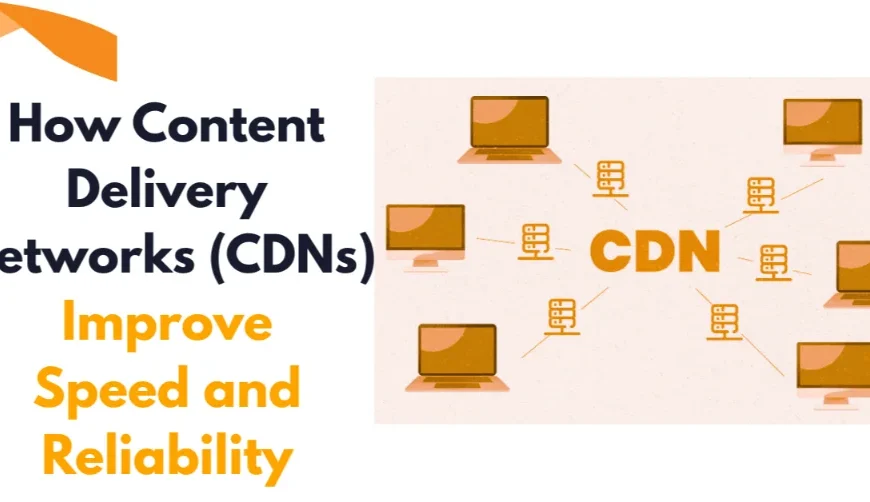
b) Use a Content Delivery Network (CDN)
A CDN is a network of servers distributed around the world.
When you use a CDN, your site’s static files (images, stylesheets, JavaScript) are copied to servers in multiple locations.
When a visitor accesses your site, those files are served from the server closest to them geographically. This reduces latency significantly.
Cloudflare offers a solid free CDN tier that works seamlessly with WordPress.
c) Minify CSS and JavaScript Files
The CSS and JavaScript files that power your site’s design and functionality are written with human-readable spacing, line breaks, and comments.
While helpful for developers, all that extra whitespace adds unnecessary file size.
Minification removes it, reducing file sizes without changing how the code functions.
Most good caching plugins include minification as a built-in feature. Just enable CSS and JS minification from within your caching plugin’s settings and test your site afterward to make sure nothing breaks visually.
d) Optimize Your Database
Over time, your WordPress database accumulates overhead like post revisions, spam comments, transient options, orphaned metadata, etc.
This bloat can slow down the database queries your site runs on every page load.
Regularly cleaning your database keeps those queries fast and your site responsive.
The WP-Optimize plugin makes this easy. It can automatically clean up revisions, drafts, spam, and expired transients on a set schedule, all without touching your actual content.
Truehost: Helping Speed Up Your WordPress Website
You’ve now got a solid arsenal of fixes to apply. At Truehost, we are committed to helping you boost the performance of your WordPress website.

With our WordPress hosting plans, you’ll get:
a) SSD Storage – Unlike traditional hard drives, Solid State Drives retrieve and deliver data significantly faster.
This directly translates to quicker server response times, meaning your WordPress pages start loading sooner the moment a visitor lands on your site. It’s one of the most fundamental hardware-level speed advantages you can have.
b) Unlimited Bandwidth – Bandwidth is the amount of data your hosting can transfer to visitors at any given time.
With unlimited bandwidth, your site won’t slow down or get throttled during traffic spikes. Whether you’ve gone viral, run a promotion, or simply have a growing audience, your site stays fast.
c) LiteSpeed Enterprise Servers – This one is a big deal. LiteSpeed is regarded as one of the fastest web server technologies available, significantly outperforming the more common Apache servers.
It includes built-in caching at the server level. This means your WordPress pages are served to visitors even faster without relying on a caching plugin to do the heavy lifting.
d) Python and Node.js Support – If your WordPress setup involves custom scripts, automation tools, or integrations that run on Python or Node.js, having server-level support for these languages means those processes run natively and efficiently.
e) Free Daily Backups – Speed optimization work can occasionally go wrong. A caching configuration, a plugin conflict, or a theme change can break things.
With free daily backups, you can roll back your site to a previous working state instantly, rather than spending hours troubleshooting a broken site while visitors bounce.
f) 24/7 Support – When something affects your site’s performance and you can’t figure it out alone, waiting days for a support ticket response isn’t an option.
Truehost’s round-the-clock support means you have expert help available whenever you need it.
g) 99.97% Uptime Guarantee (Backed by SLAs) – A fast site that’s frequently down is no site at all.
Truehost’s uptime guarantee, backed by Service Level Agreements, ensures your website stays live and accessible around the clock.
Consistent uptime also matters for SEO; search engines take note when a site is frequently unreachable.
On top of this, you’ll also get:
a) 1-click WordPress installer for quick setup
b) Free domain
c) Free automated SSL to secure your site
d) Unlimited email accounts
e) Free website builder
f) Free website templates to get you started
g) Shared IP address
h) cPanel/custom panel to manage everything in one place
i) Affordable pricing in INR
Conclusion
A slow WordPress website can frustrate visitors, hurt your search rankings, and reduce conversions.
But the good news is that by addressing the 13 areas covered in this article, you can significantly improve your site’s speed.
Combine this with high-performance hosting from Truehost, and you’ll create a strong foundation for a website that provides a smooth browsing experience for every visitor.
Visit our WordPress Hosting page to learn more.