Web HostingBudget-friendly shared hosting plans
 Domains SearchFrom .com to unique country domains, explore and register extensions worldwide.
 WordPress HostingPower your blog or business with WordPress hosting.
 Email HostingSimple, secure email hosting that helps you stay connected and professional.
 Reseller HostingStart your own hosting business with easy and reliable reseller hosting plans.
 AffiliateJoin our affiliate program and earn commissions every time you bring in new customers.
 cPanel HostingHosting powered by cPanel, the world’s most user-friendly control panel.
 Windows HostingBuilt for Windows applications and websites
 IN Domain PricesDon’t miss out on the best domain deals in India!
 WHOIS LookupFind out who owns a domain name with a quick and easy WHOIS search.
 Domain TransferTransfer your domain to us and enjoy reliable support every step of the way.
 .Com DomainGet the most trusted domain for worldwide credibility
 All TldsSearch and register domain extensions worldwide.
 SSL CertificatesProtect your website with trusted SSL certificates and keep customer data safe.
 VPS HostingPowerful virtual servers. Full root access. Reliable uptime.
 Managed VPS HostingNot a tech expert? Choose our fully managed VPS service.
 Dedicated ServersTake full power and total control of your own physical server.
 AI Website BuilderCreate stunning websites instantly with our easy AI builder.
 Online ShopBuild your eCommerce store easily, no coding, just growth.
 Web Design ServicesGet a website built for your brand and designed for your goals.
 Contact UsReach out to us for support or questions.
 SupportGet answers and how-to guides for all our services.
 BlogRead our latest blogs on web hosting, online business, digital marketing, and other helpful topics.
Have you ever ended up on a different domain from what you typed or clicked?
That’s not magic; it’s a domain redirect at work.
If you’re managing a website, chances are you’ve faced situations where you needed one.
Maybe you changed your domain name or extension. Or maybe you’re trying to clean up messy URLs and guide users to the right place.
Without proper redirects, visitors can land on broken pages. Search engines might also get confused, hurting your rankings.
If your hosting uses cPanel, setting up a domain redirect is surprisingly simple, even if you’re a beginner.
In this guide, you’ll learn exactly how to do this.
What is a Domain Redirect?
A domain redirect is a way of sending visitors from one URL to another automatically.
Instead of showing them the page they originally requested, the server tells their browser, “This page has moved, go here instead.”
The browser then loads the new destination instantly.
For example, if someone visits:
- example.net
They can be automatically redirected to:
- example.com
This happens behind the scenes in seconds, without the user needing to take any action.
Redirects are commonly used when:
- You change your domain name
- You merge multiple websites into one
- You want to enforce a preferred version of your site (like HTTPS or www)
- You fix broken or outdated URLs
- You run marketing campaigns with custom links
Redirects basically ensure that users and search engines always find the right content, even if your URLs change.
Main Types of Domain Redirects in cPanel
cPanel offers two primary redirect types:
a) 301 Permanent Redirect
This tells browsers and search engines that the original URL has moved to a new location permanently.
When Google sees a 301 redirect, it transfers the SEO link equity (essentially the ranking power) from the old URL to the new one.
Use this when you’re rebranding, migrating a site, or consolidating domains, and you have no plans to revert the change.
b) 302 Temporary Redirect
This signals that the move is short-term.
Search engines will keep the original URL indexed because they expect it to come back.
Use this for A/B tests, seasonal promotions, maintenance pages, or any situation where the original URL will eventually be restored to active use.
How to Set Up a Domain Redirect in cPanel
Follow these steps to easily set up a domain redirect in cPanel:
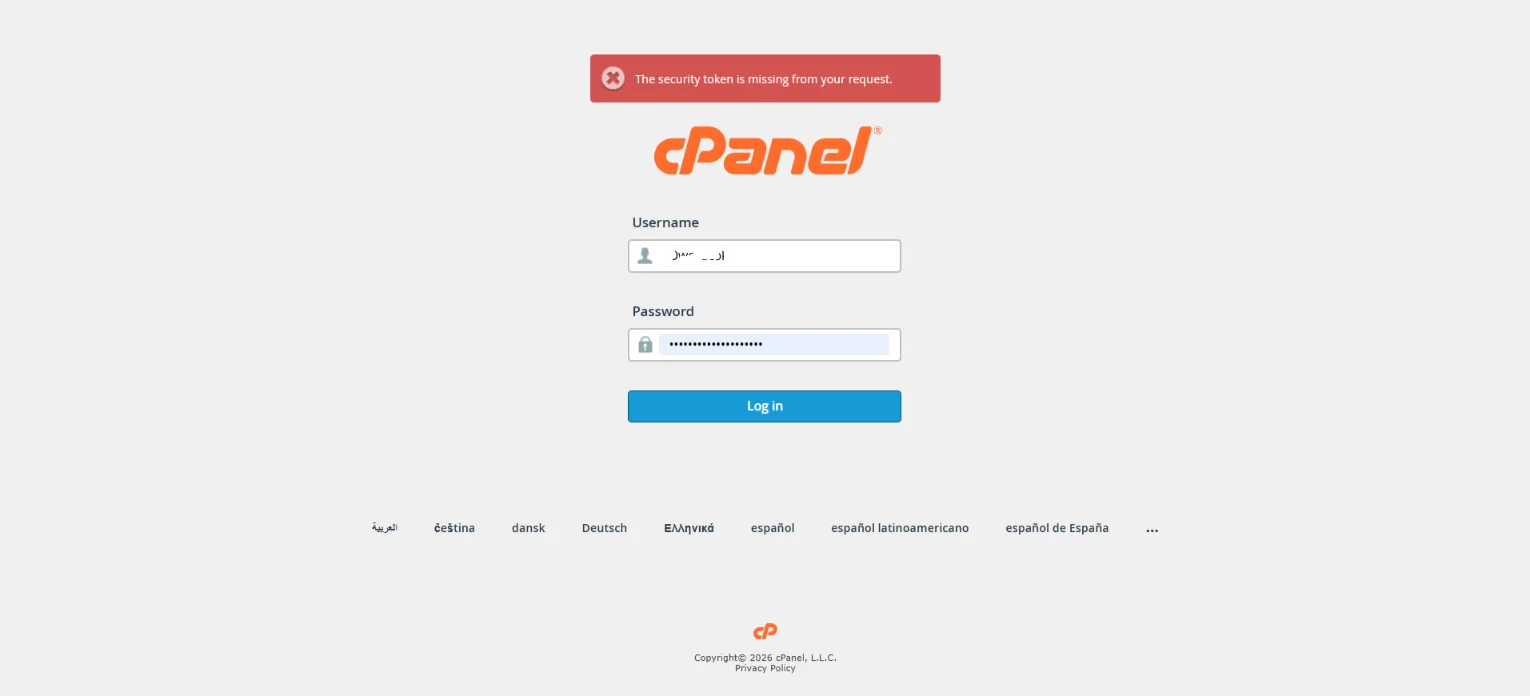
Step 1) Log in to Your cPanel Account
Start by logging into your hosting account and accessing the cPanel dashboard.
Most hosting providers give you a direct link like:
- yourdomain.com/cpanel
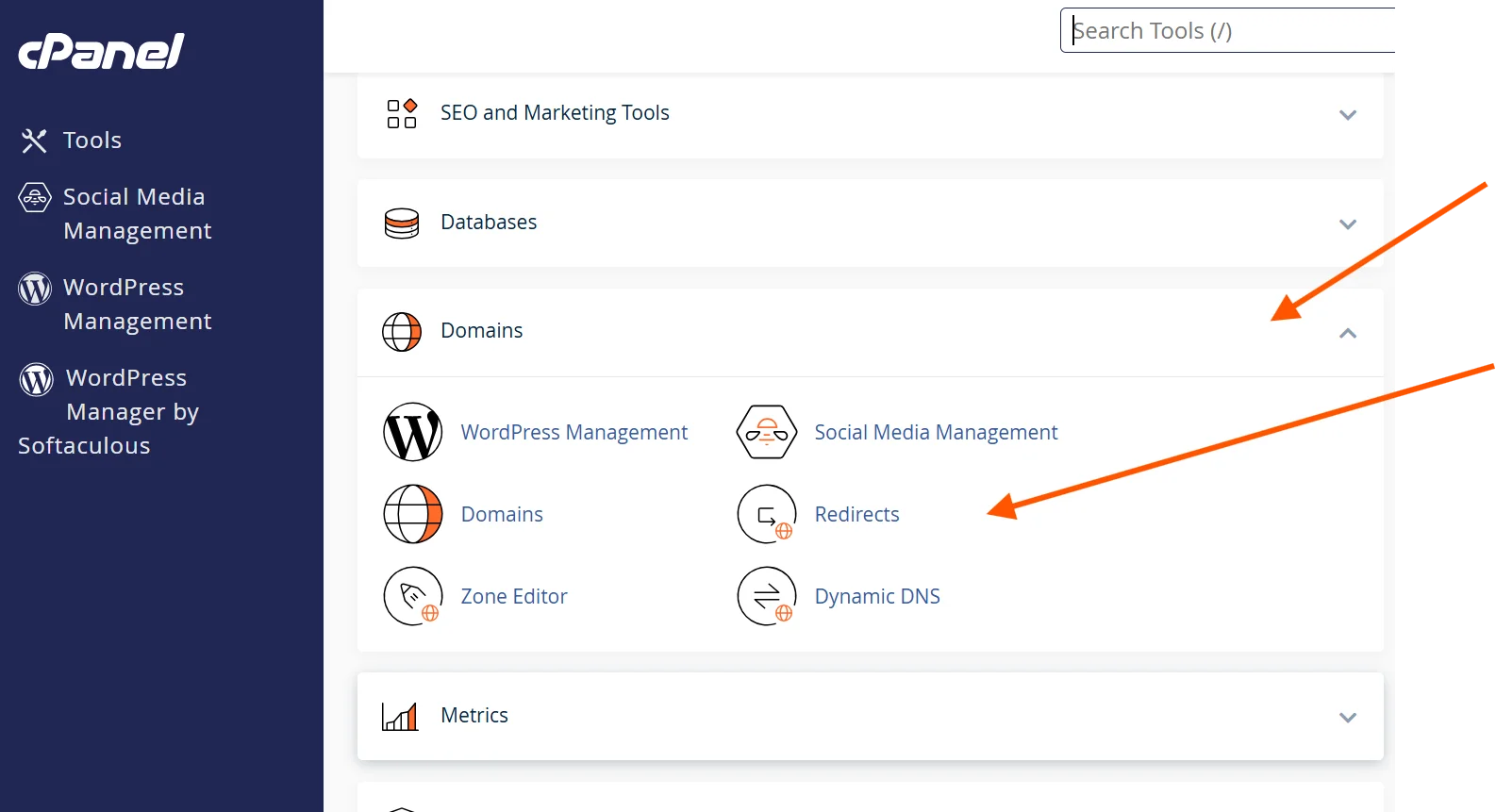
Step 2) Locate the Redirects Tool
Once inside cPanel:
Scroll down to the Domains section. Then, click on Redirects.
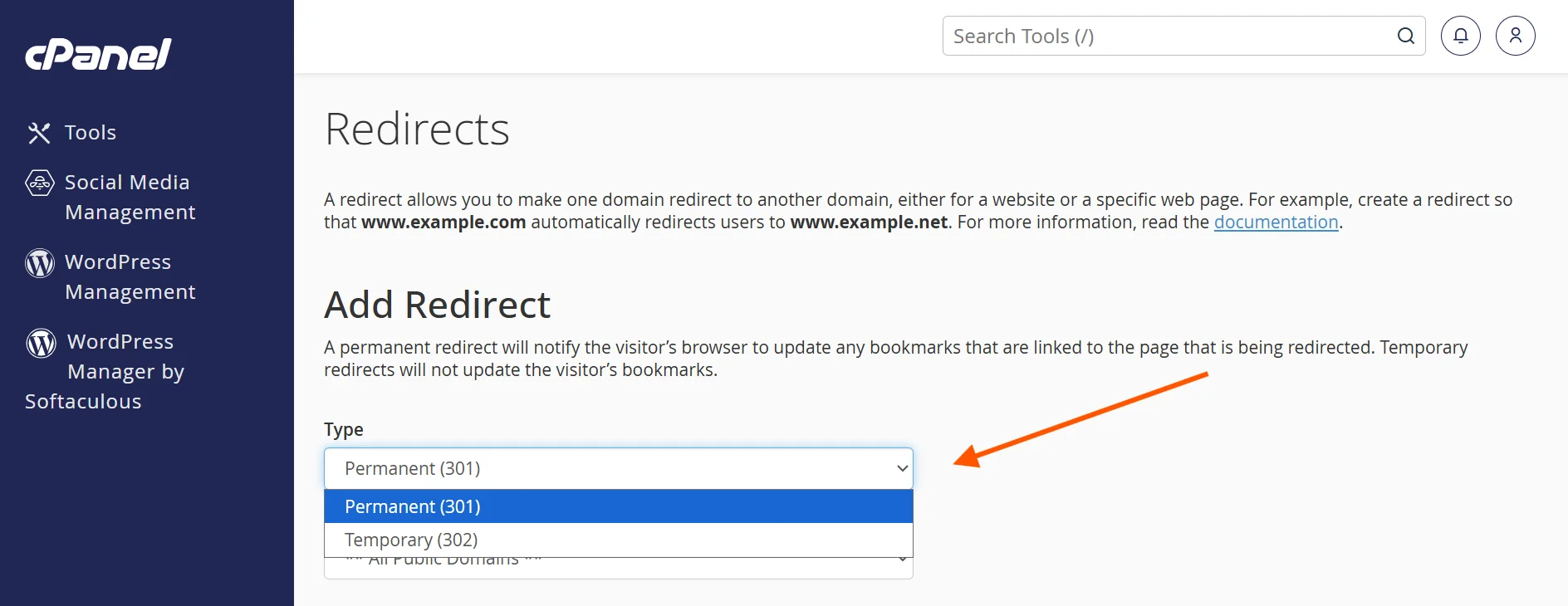
Step 3) Choose the Redirect Type
At the top of the Redirects page, you’ll see a dropdown menu.
Select one of the following:
- Permanent (301) – for long-term redirects
- Temporary (302) – for short-term redirects
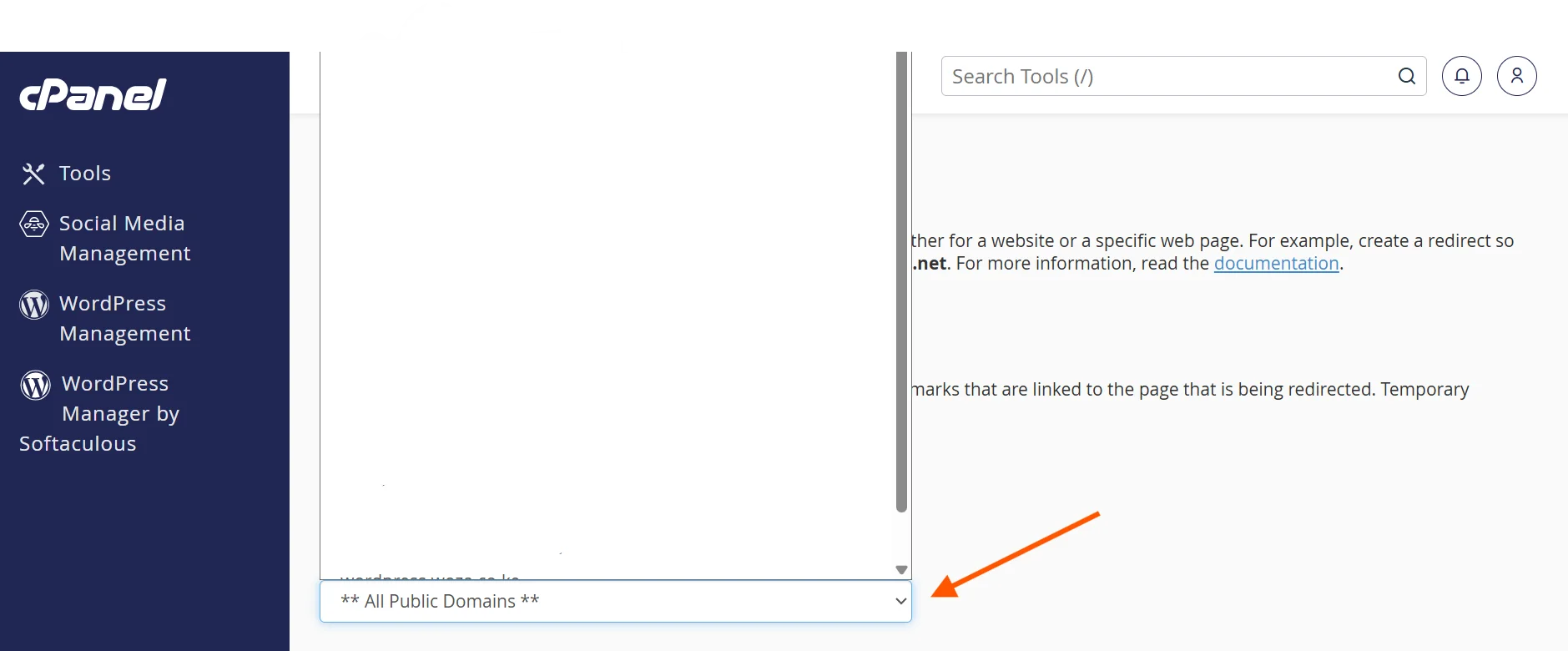
Step 4) Select the Domain
Next, choose the domain you want to redirect from.
If you have multiple domains or subdomains, make sure you select the correct one from the dropdown list.
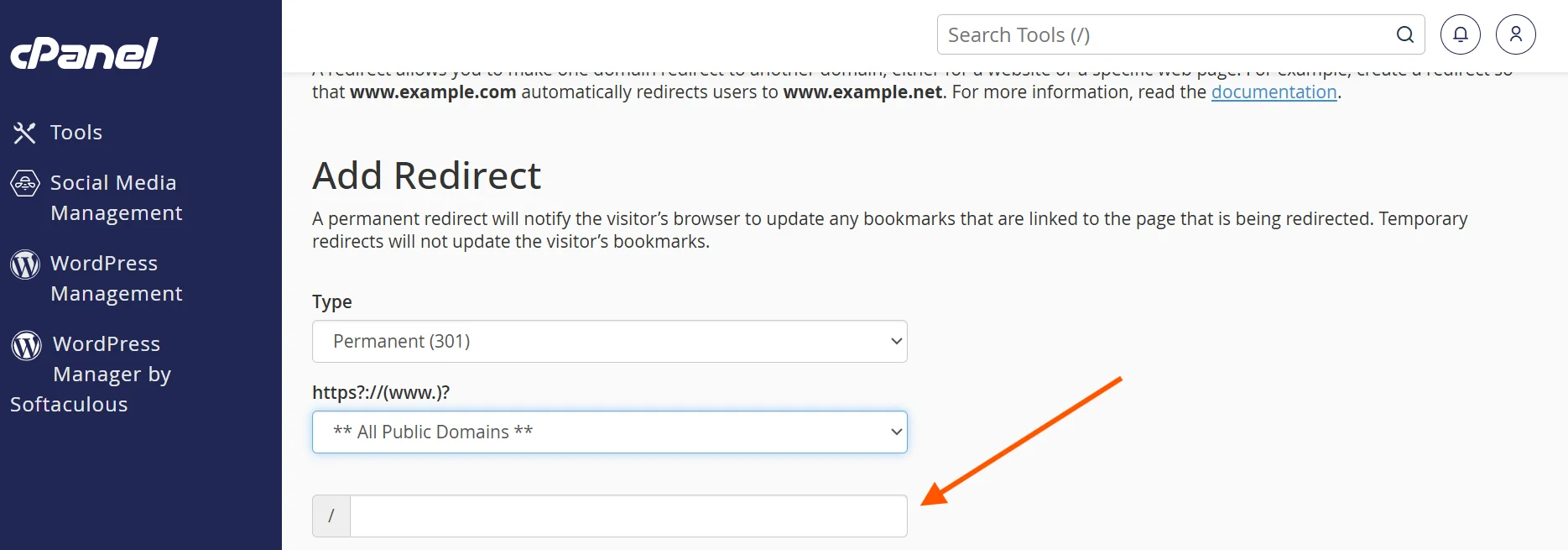
Step 5) Enter the Rest of the URL
In the / text box, enter the remaining part of the URL you want to redirect users from.
For example:
- If you want to redirect http://example.com/directory/file.html
- Enter: directory/file.html in the text box
If you leave this field blank, the entire domain will be redirected.
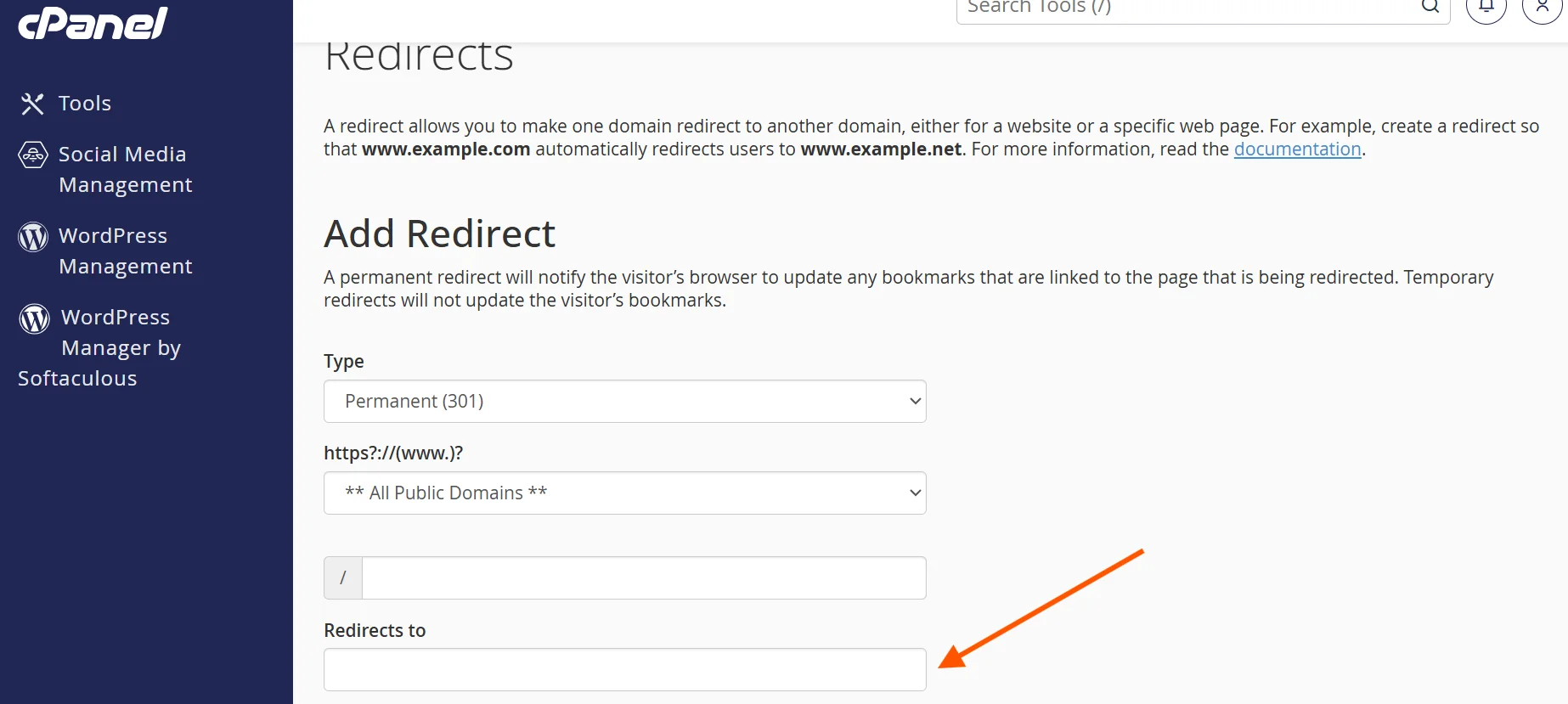
Step 6) Enter the Destination URL
In the “Redirects to” field, type the full URL where visitors should be sent.
For example:
- https://yournewdomain.com
Make sure you include:
- http:// or https://
Otherwise, the redirect may not work correctly.
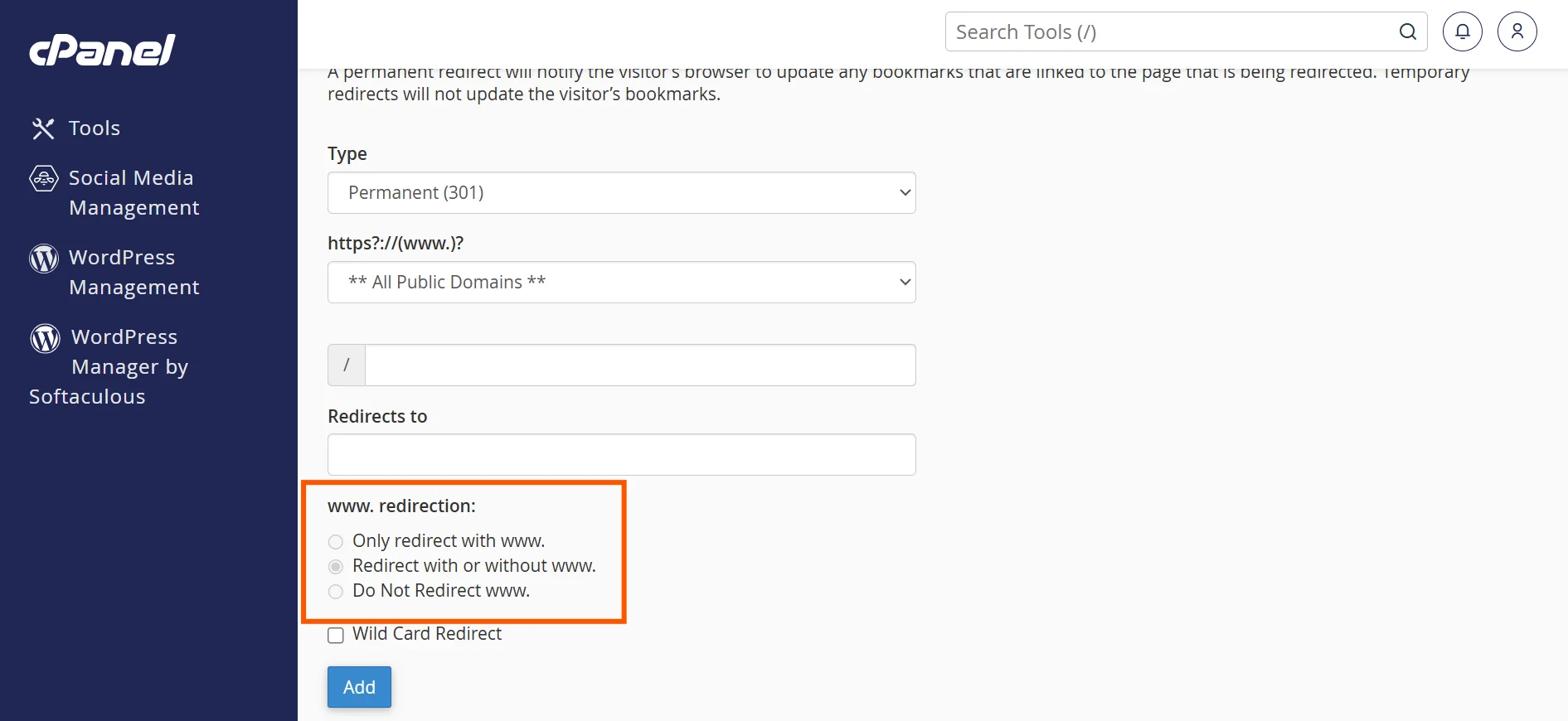
Step 7) Choose Redirect Options
You’ll see these options:
- Only redirect with www – selecting this will only redirect visitors who enter the www. prefix before the domain name part of the URL.
- Redirect with or without www – selecting this will redirect all users, regardless of whether they enter the www. Prefix or not.
- Do Not Redirect www – selecting this will not redirect users who enter the www. prefix
For most cases, select Redirect with or without www.
This ensures all variations of your domain are covered.
Step 8) Enable Wildcard Redirect (Optional)
If you check Wildcard Redirect, all files within your directory will be redirected to the same filename in the new directory.
For example:
- example.com/blog/post1 → newdomain.com/blog/post1
This is useful when migrating an entire website.
Step 9) Click Add
Once everything is set, click the Add button
Your redirect will now be active.
Step 10) Test Your Redirect
Always test your redirect to make sure it works correctly.
Open a browser and type in the old URL. It should automatically take you to the new destination.
If it doesn’t work, clear your browser cache or double-check your settings.
Benefits of Setting Up a Domain Redirect
Domain redirects offer a number of meaningful advantages beyond sending users from point A to point B.
These include:
a) Preserving SEO Rankings – A properly configured 301 redirect transfers the search authority of your old URL to the new one. You don’t lose years of ranking signals after moving or rebranding.
b) Eliminating Broken Links – Redirects prevent the 404 errors that frustrate users and search engines. Any existing backlinks pointing to your old URL will continue delivering value.
c) Improving User Experience – Visitors don’t need to remember a new URL or manually find your new site. The redirect does the work for them, reducing friction and drop-offs.
d) Consolidating Domain Variations – If you own multiple versions of your domain (with and without www, or different TLDs like .net and .com), redirecting them all to one canonical version helps avoid duplicate content penalties from search engines.
e) Brand Consistency – Redirects ensure that all domain variations lead to one official version of your website. This ensures brand consistency.
f) Supporting Business Rebranding – When you change your business/website name, a domain redirect ensures that brand equity and web traffic built under the old name aren’t lost overnight.
g) Simplifying Website Management – You can easily restructure your site without worrying about losing traffic.
h) Supporting Marketing Campaigns – You can use short, branded redirect domains to point to specific landing pages when marketing. This makes links cleaner and easier to track in analytics tools.
Mistakes To Avoid When Setting a Domain Redirect
There are a few pitfalls that can cause headaches when setting a domain redirect.
Here’s what to watch out for:
a) Using the Wrong Redirect Type
As explained earlier, a 302 tells search engines the move is temporary. If you’re permanently redirecting a domain or a page, always use 301.
Failing to do so means your old URL remains indexed, your new URL doesn’t inherit its SEO strength, and you may see a drop in rankings over time.
b) Creating a Redirect Loop
A redirect loop happens when URL A redirects to URL B, which then redirects back to URL A, creating an infinite cycle.
Browsers display a “too many redirects” error and users can’t access the page at all.
Always confirm that your destination URL isn’t already redirecting elsewhere.
c) Entering an Incomplete Destination URL
Forgetting to include https:// or http:// at the start of your destination URL can cause the redirect to fail or behave unexpectedly.
Always enter the full, properly formatted URL, including the protocol prefix.
d) Not Redirecting Both WWW and Non-WWW
If you only redirect the www version of your domain but not the bare domain (and vice versa), some visitors will still land on the old, unredirected page.
Always configure your redirect to handle both variations unless you have a specific reason not to.
e) Not Updating Internal Links
Redirects are helpful, but your website should still link directly to the correct pages.
f) Ignoring Wildcard Settings
If you’re moving an entire site, not enabling wildcard redirects can break individual page links.
g) Testing Only Once
Always test multiple URLs and scenarios to ensure everything works as expected.
Truehost: Hosting + Domains in One Place
When someone enters your domain name, the domain connects to your hosting server through the Domain Name System (DNS), and then your website is displayed.
Because they work together, your hosting provider directly impacts how well your domain performs and how easy it is to manage.
This is why having a provider like Truehost is key.
We combine domain registration and hosting in a way that simplifies the process for beginners and professionals alike.
With Truehost, you get:
- Domain registration at the cheapest prices in India
- Access to 500+ domain extensions, giving you flexibility in branding
- Free DNS management, allowing full control over your domain settings at no extra cost
- Bulk domain tools, making it easy to search and manage multiple domains
- Clear pricing in INR with no hidden fees or surprise renewals
- Flexible payment options, including bank transfer and credit/debit cards
- Instant activation, so your domain goes live immediately after purchase
- 24/7/365 support in case you have issues or questions
By offering both domain and hosting services in one place, Truehost removes the complexity of managing separate platforms, ensuring your domain works seamlessly with your website.
Conclusion
Setting up a domain redirect in cPanel is one of the simplest yet most powerful tools you can use to manage your website.
Whether you’re changing domains, fixing broken links, or looking to improve SEO, redirects ensure your visitors always reach the right destination.
Take the time to set and test your redirects, avoid common mistakes, and choose a reliable hosting provider.
With these in place, you’ll have full control over how users navigate your website, no matter how your structure evolves.
Visit our homepage to get started with Truehost today.