Web HostingBudget-friendly shared hosting plans
 Domains SearchFrom .com to unique country domains, explore and register extensions worldwide.
 WordPress HostingPower your blog or business with WordPress hosting.
 Email HostingSimple, secure email hosting that helps you stay connected and professional.
 Reseller HostingStart your own hosting business with easy and reliable reseller hosting plans.
 AffiliateJoin our affiliate program and earn commissions every time you bring in new customers.
 cPanel HostingHosting powered by cPanel, the world’s most user-friendly control panel.
 Windows HostingBuilt for Windows applications and websites
 IN Domain PricesDon’t miss out on the best domain deals in India!
 WHOIS LookupFind out who owns a domain name with a quick and easy WHOIS search.
 Domain TransferTransfer your domain to us and enjoy reliable support every step of the way.
 .Com DomainGet the most trusted domain for worldwide credibility
 All TldsSearch and register domain extensions worldwide.
 SSL CertificatesProtect your website with trusted SSL certificates and keep customer data safe.
 VPS HostingPowerful virtual servers. Full root access. Reliable uptime.
 Managed VPS HostingNot a tech expert? Choose our fully managed VPS service.
 Dedicated ServersTake full power and total control of your own physical server.
 AI Website BuilderCreate stunning websites instantly with our easy AI builder.
 Online ShopBuild your eCommerce store easily, no coding, just growth.
 Web Design ServicesGet a website built for your brand and designed for your goals.
 Contact UsReach out to us for support or questions.
 SupportGet answers and how-to guides for all our services.
 BlogRead our latest blogs on web hosting, online business, digital marketing, and other helpful topics.
If you run a business (online or otherwise), email is one of the most important ways people contact you.
Customers send inquiries, partners share updates, and notifications from your systems arrive daily.
But managing multiple email addresses can quickly become overwhelming.
You probably want:
- One place to read everything
- No emails slipping through the cracks
- A setup that runs on its own without constant babysitting
That’s exactly what automatic email forwarding gives you.
In this guide, we’ll walk through:
- What email forwarding is
- When businesses use it
- How to configure it step-by-step in cPanel
- Important tips
- Why hosting Matters
- Truehost’s email hosting
What Is Email Forwarding?
Email forwarding is a feature that automatically redirects emails from one address to another.
When someone sends a message to a forwarded address, it instantly passes the email on to a destination address you’ve specified.
Think of it like call forwarding on a phone. The original number still exists and works, but every call (or in this case, email) gets routed somewhere else behind the scenes.
There are two common types of email forwarding:
a) Simple forwarding – The original recipient doesn’t get the emails. The address just acts as a relay.
b) Copy forwarding – This lets you forward emails while also retaining a copy in the original mailbox.
Important Note: Email forwarding is different from an email alias. An alias is an additional name for an existing mailbox. Here, emails go into the same inbox.
Forwarding, on the other hand, redirects the message to a separate inbox.
When Businesses Use Email Forwarding
Email forwarding isn’t just a convenience feature. For many businesses, it’s a core part of how they manage communication.
Here are some common scenarios:
a) Handling role-based addresses without creating full mailboxes
A slightly large business might use forwarding to make sure the right team member(s) receive the right message.
Emails to billing@ go to the accounts person in charge, emails to support@ go to the customer service rep, careers@ goes to the HR, and so on.
Forwarding emails to existing addresses covers the need without the overhead.
b) Maintaining professionalism while using a preferred email client
Some business owners prefer to work inside Gmail or Outlook but still want to present a professional domain-based email address to clients.
Forwarding lets them receive emails sent to their custom domain address directly in their preferred client.
c) Ensuring continuity during staff changes
When an employee leaves, their email address doesn’t have to simply stop working.
Forwarding their address to a manager or successor ensures nothing important gets lost during the transition.
d) Ensuring no emails are missed
Sometimes businesses forward emails to multiple team members so that messages are never missed.
Example:
[email protected] is forwarded to:
e) Transitioning to a new email address
When changing business emails, forwarding ensures that messages sent to old addresses still reach you.
Example:
[email protected] – [email protected]
This prevents communication disruptions during transitions
Steps to Configure Email Forwarding in cPanel
The process of setting up email forwarding varies depending on your hosting provider and control panel.
However, the logic is the same: you specify a source address (the one emails are sent to) and a destination address (where they should be forwarded).
Let’s go through this using cPanel, one of the widely used hosting control panels. We will be using a Truehost account for this.
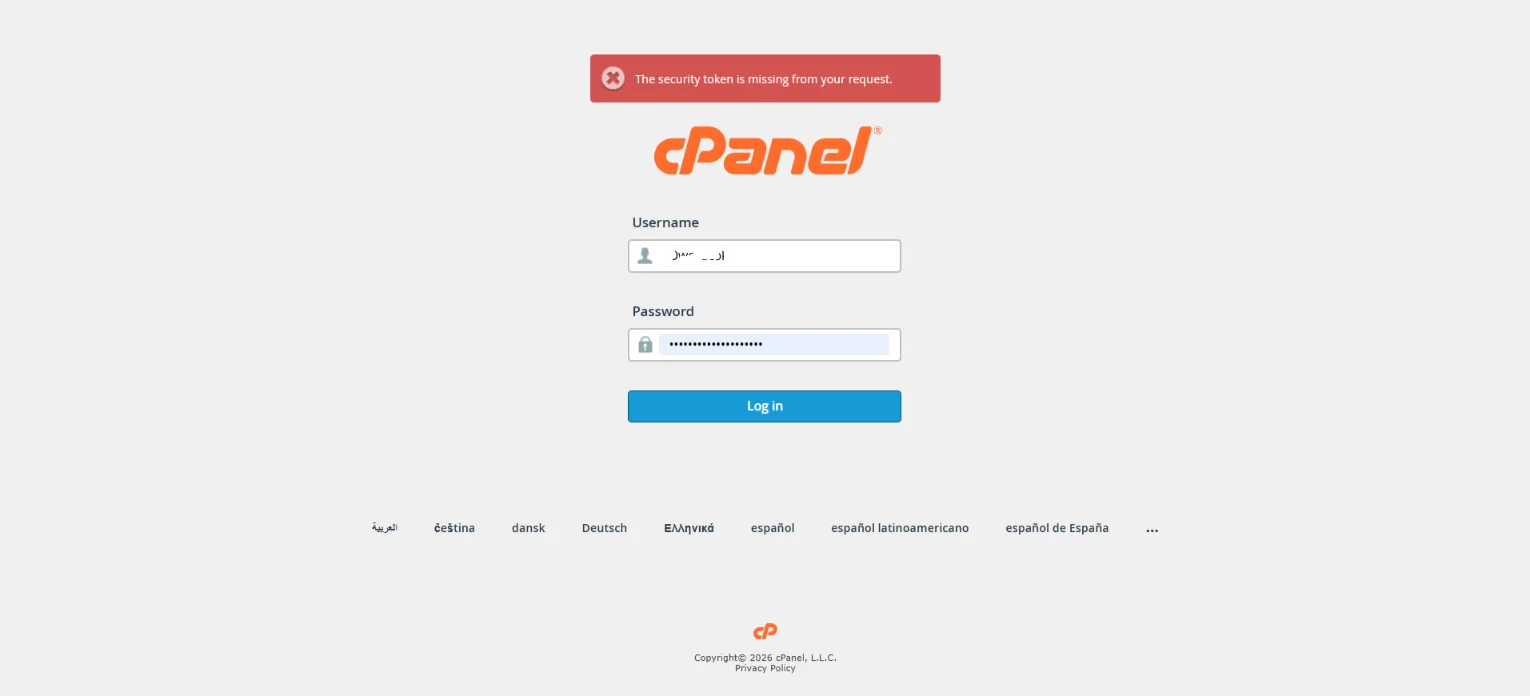
Step 1) Log into your cPanel account
Open your browser and go to your hosting provider’s cPanel login URL.
This is usually something like yourdomain.com/cpanel or a link provided in your welcome email when you signed up for hosting.
Enter your username and password to log in.
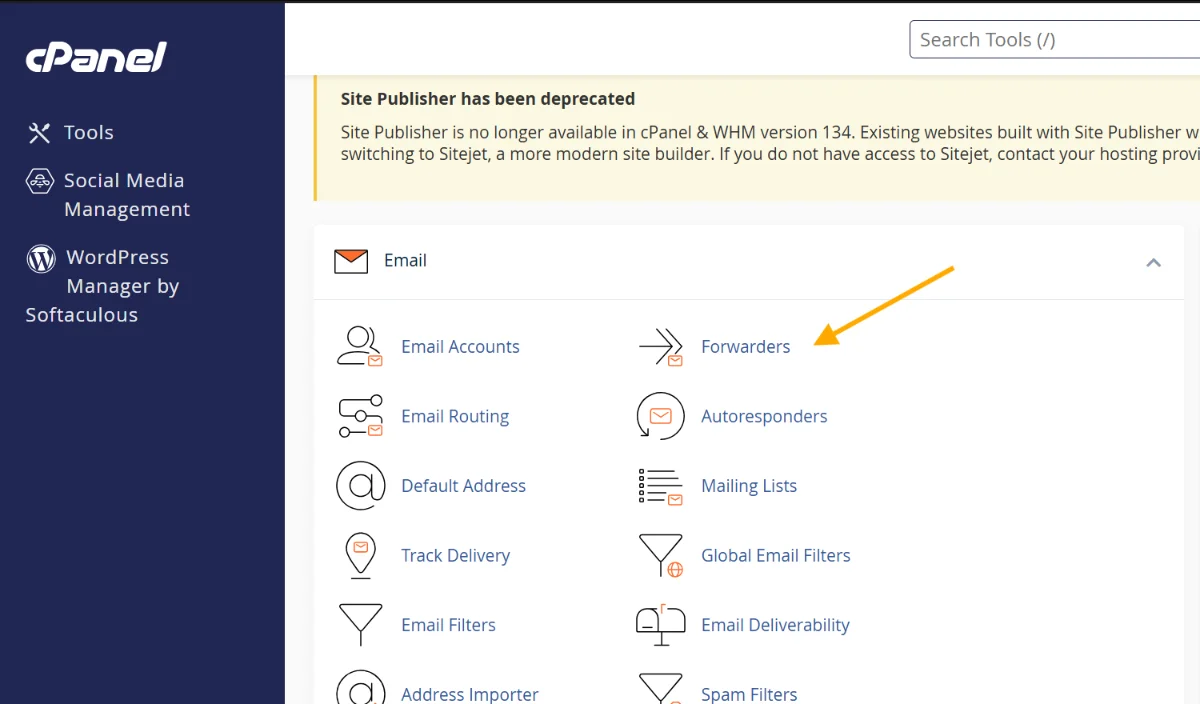
Step 2) Navigate to the Email section
Once you’re inside cPanel, scroll down until you find the “Email” section.
Look for the option labeled “Forwarders” and click on it.
This is the dedicated area for managing email forwarding rules on your domain.
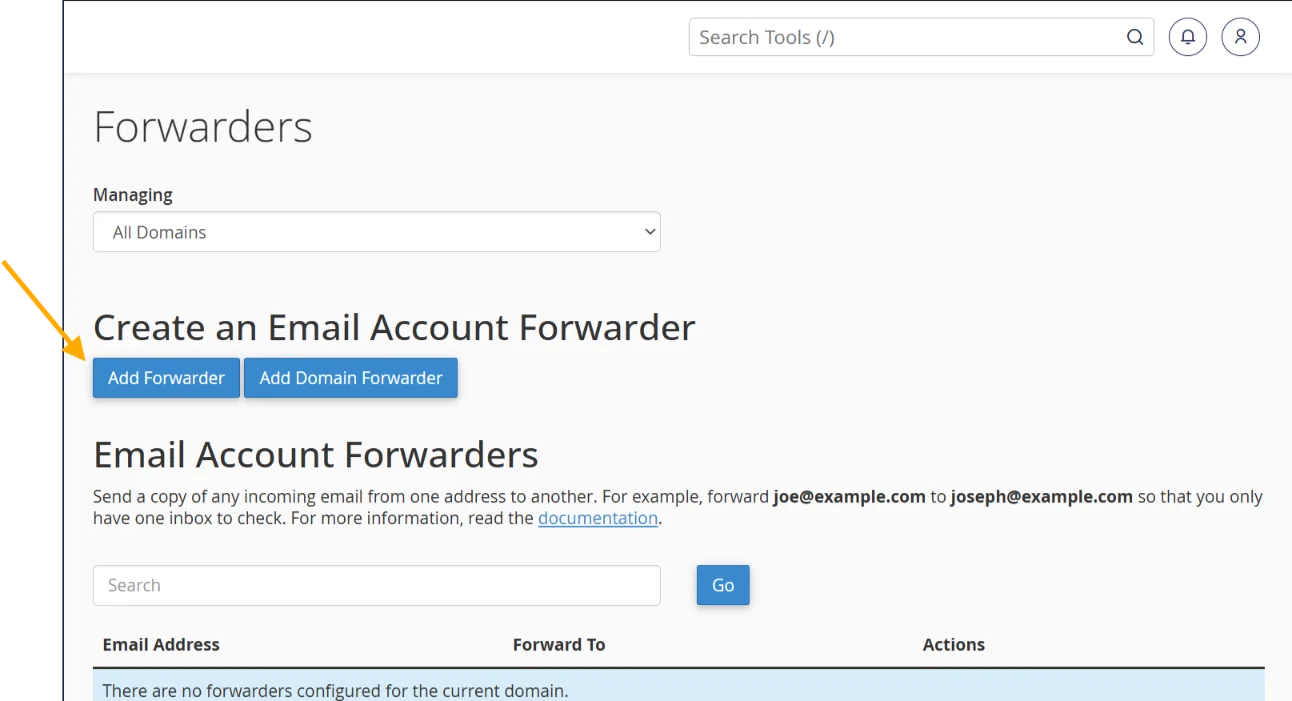
Step 3) Click “Add Forwarder”
You’ll see a list of any existing forwarders (it will be empty if this is your first time).
Click the “Add Forwarder” button to create a new one.
Step 4) Enter the source address
In the “Address to Forward” field, type the local part of the email address you want to forward. That’s the part before the @ symbol.
From the dropdown menu next to it, select the domain you want this to apply to.
Example: If you type “info” and select “yourbusiness.com,” the forwarder will apply to [email protected].
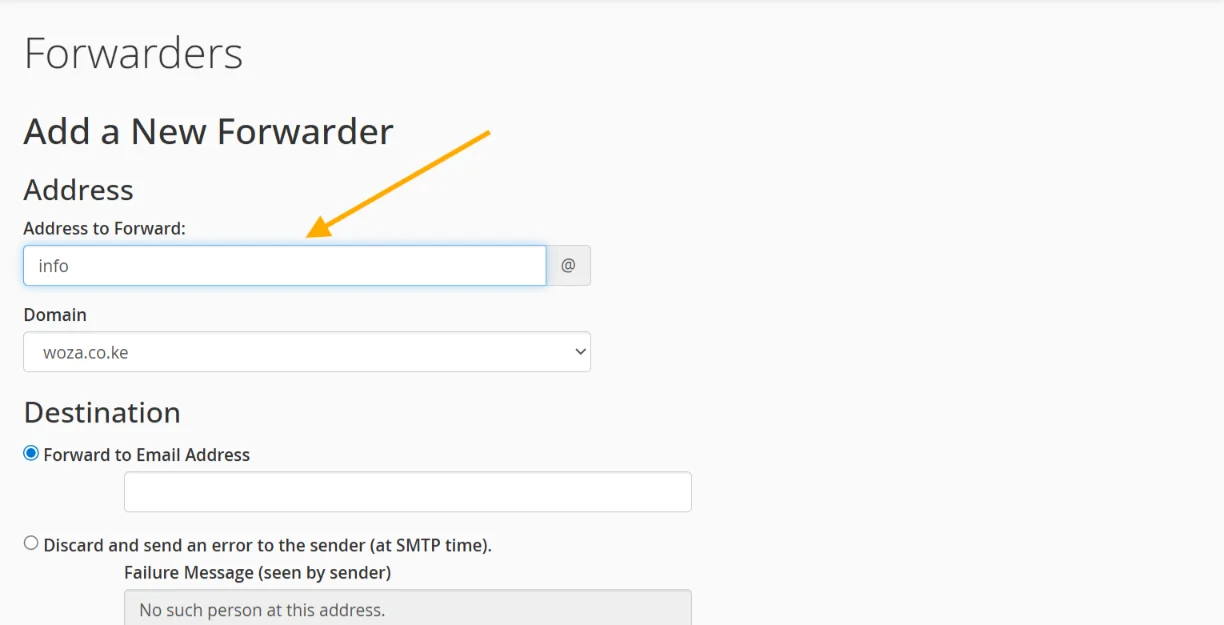
Step 5) Set the destination
Under the “Destination” section, you’ll see a few options.
The most common choice is “Forward to Email Address.”
Enter the full destination email address here. This can be any email address, whether on the same domain, a different domain, or even a Gmail or Outlook account.
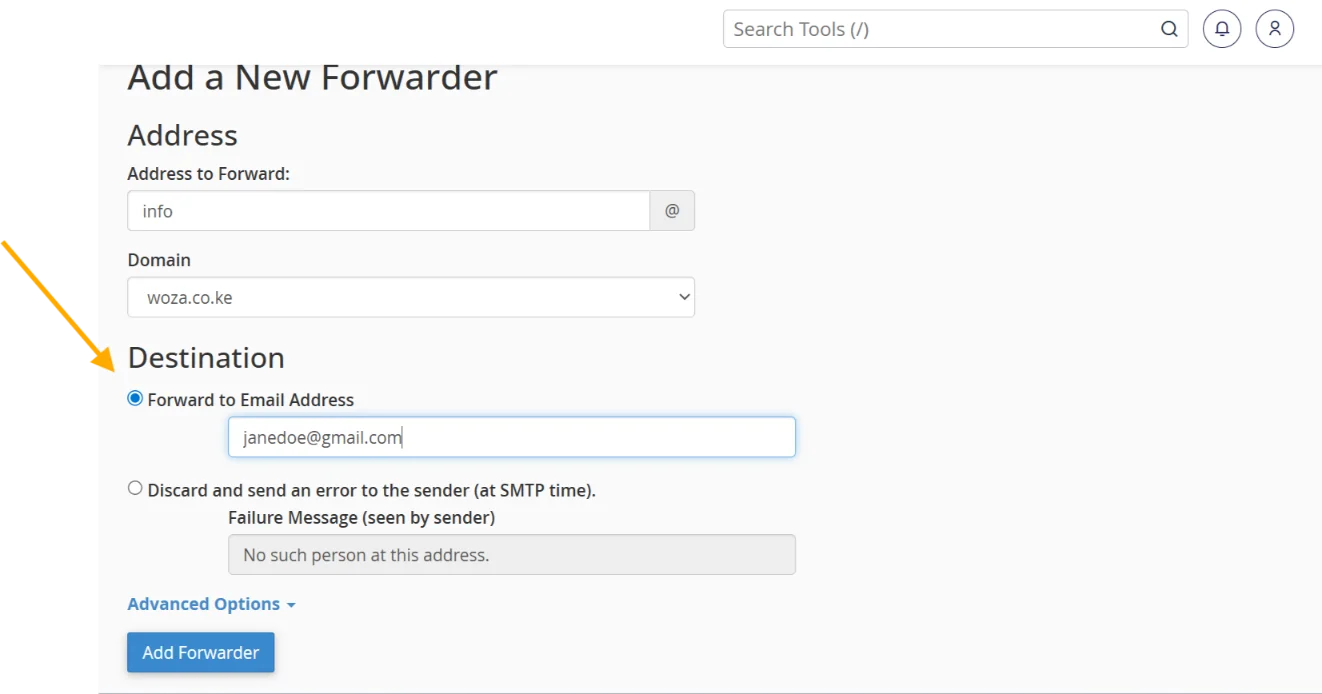
Step 6) Save the forwarder
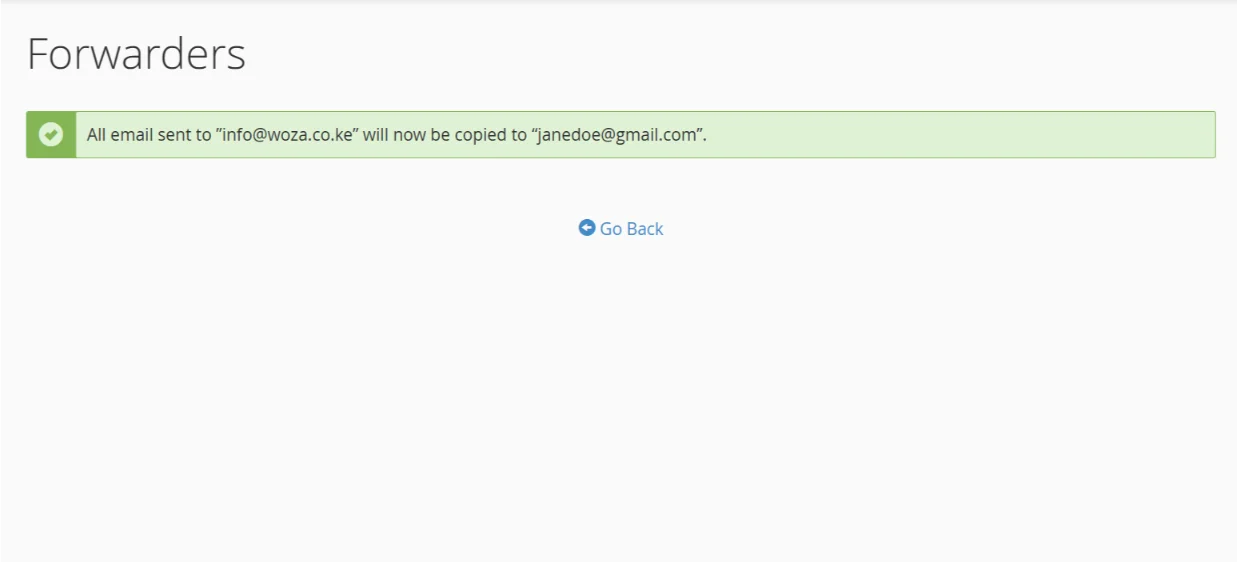
Click “Add Forwarder” to save. This will make the rule active.
From this point on, any email sent to the source address will automatically be redirected to your destination inbox.
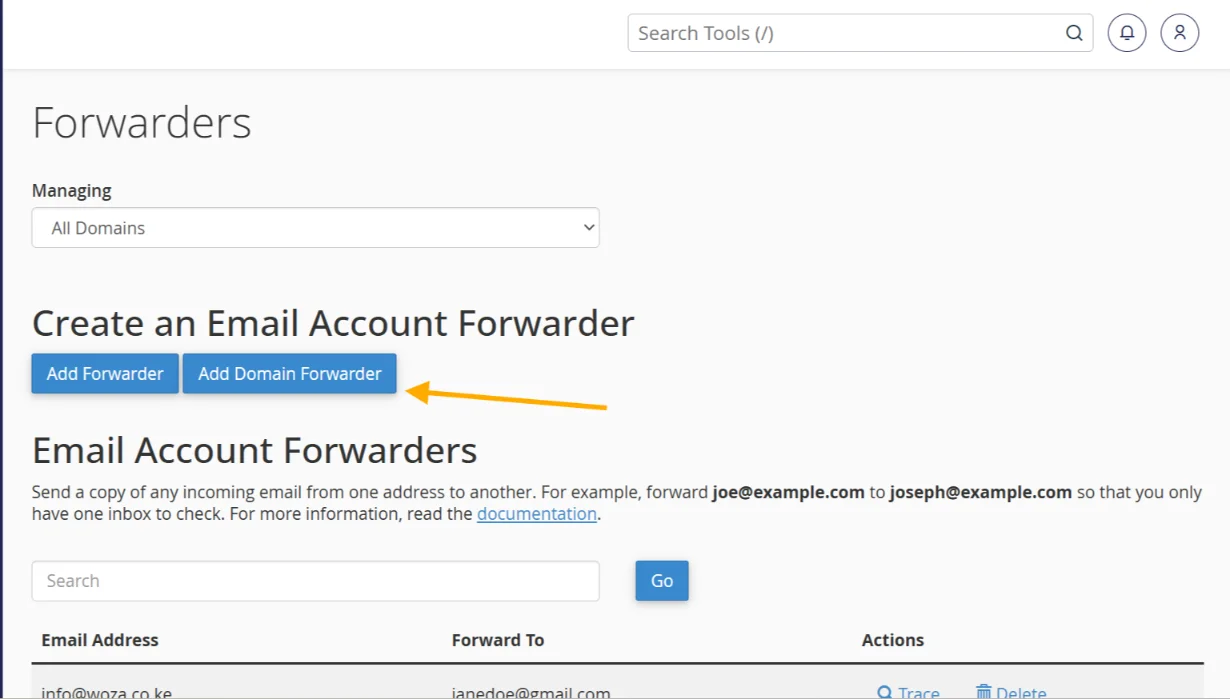
To forward an entire domain (all email addresses, including ones that don’t have mailboxes), you can use the “Add Domain Forwarder” option.
Testing Email Forwarding
After setting up a forwarder, always verify that it’s working correctly before relying on it.
Testing takes only a couple of minutes but can save you from missing real messages later.
Step 1) Send a test email
Send an email to the address you just set up forwarding for.
For this, use a separate email account; either a personal Gmail or another inbox you can access.
Use a clear subject line like “Forwarding Test” so it’s easy to identify.
Step 2) Check the destination inbox
Open the destination inbox where emails should be forwarded.
If configured correctly, the message should appear there.
If it doesn’t, check your spam or junk folder first. Forwarded emails can sometimes be flagged by spam filters.
Step 3) Check for delivery issues
If the email still doesn’t arrive, go back to cPanel and verify the forwarder was saved correctly.
Double-check for typos in the destination address. A single wrong character breaks the forwarding chain.
Step 4) Test reply behavior
When you reply to a forwarded email from your destination inbox, your reply will go to the sender from your destination address (e.g., your Gmail), not from your domain address.
If you need replies to appear to come from your custom domain, configure a “Send mail as” setting in your email client. Gmail, Outlook, and most major clients support this.
Important Tips
Once you understand forwarding, you can build a fairly sophisticated email setup without needing to manage multiple full mailboxes.
Here are some tips:
a) Organize Emails with Filters
When several different addresses all forward to the same inbox, it can quickly become hard to tell which address a message was originally sent to.
Create rules that automatically sort, label, or tag incoming messages based on the original recipient address.
For instance, anything sent to support@ can be automatically labeled “Support” and starred for priority.
b) Use Catch-All (wildcard) Addresses
Some hosting providers allow catch-all email forwarding, where any email sent to your domain gets redirected to one inbox.
So if someone mistypes your address, the message still reaches you instead of bouncing back to the sender.
Example:
Any email sent to @domain.com → forwarded to [email protected]
In cPanel, this is set up under the “Default Address” option.
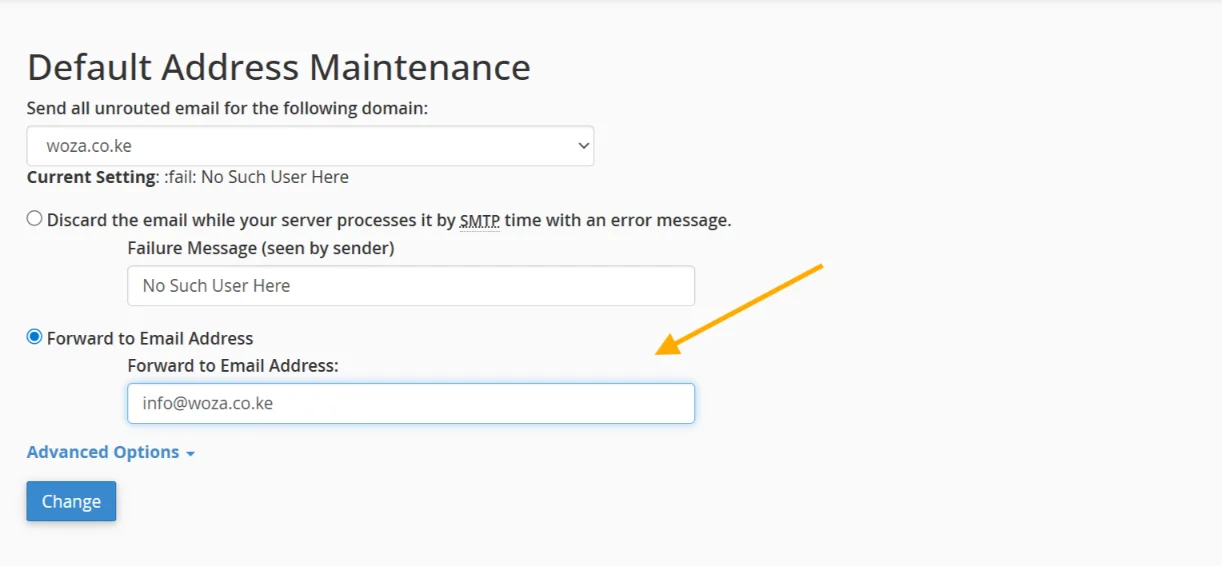
It’s a useful safety net, though it’s worth pairing with a good spam filter since catch-all addresses can attract more junk mail over time.
c) Periodically audit your forwarders
You can accumulate many email addresses over time, maybe from past staff members, old marketing campaigns, or retired products.
A forwarding rule that nobody is actively monitoring is a quiet liability. Important emails can arrive and never get read.
Make it a habit to review your list of active forwarders every few months. Confirm each one is still going to the right person, and delete any that are no longer relevant.
d) Know when to create a real mailbox
Forwarding has limits.
A dedicated mailbox is the right tool if you need:
- An address to send emails on behalf of your domain
- Multiple team members to have simultaneous access to the same inbox
- A formal archive of messages tied to a specific address
- Significant storage
Most email hosting plans give you several mailboxes to work with alongside your forwarding rules. So the two approaches can complement each other rather than compete.
Why Reliable Email Hosting Matters
Email forwarding is only as dependable as the hosting infrastructure it runs on.
Here’s why choosing a solid email hosting provider is key:
a) Scalable forwarding rules – As your business grows, so does your need for forwarding rules, aliases, and mailboxes.
Your hosting plan should be able to grow with you without requiring a platform migration.
b) Uptime and deliverability – A reliable host keeps your mail server consistently available, so forwarding rules execute without interruption.
Downtime on the server side means forwarded emails either queue up or get dropped entirely.
c) Spam and virus filtering – Without proper filtering at the server level, forwarding can actually amplify spam problems.
Forwarded spam could get delivered straight into your primary inbox.
Good hosting applies filtering before the email ever gets forwarded.
d) Security and encryption – Email in transit is vulnerable.
A trustworthy host uses encryption for both stored and sent messages, protecting sensitive business communication from interception.
e) An accessible control panel – Setting up and managing forwarders should be straightforward.
A good hosting provider gives you an intuitive control panel like cPanel.
This helps you add, edit, or delete forwarding rules easily without technical expertise.
f) Responsive support – When something goes wrong with email configuration, you need help quickly.
Email is often the primary communication channel for a business, and hours without it can have real consequences.
Get Your Email Hosting Set Up with Truehost
All the qualities that make email hosting reliable are what Truehost is built around.
When you host with us, everything covered in this guide works as it should.
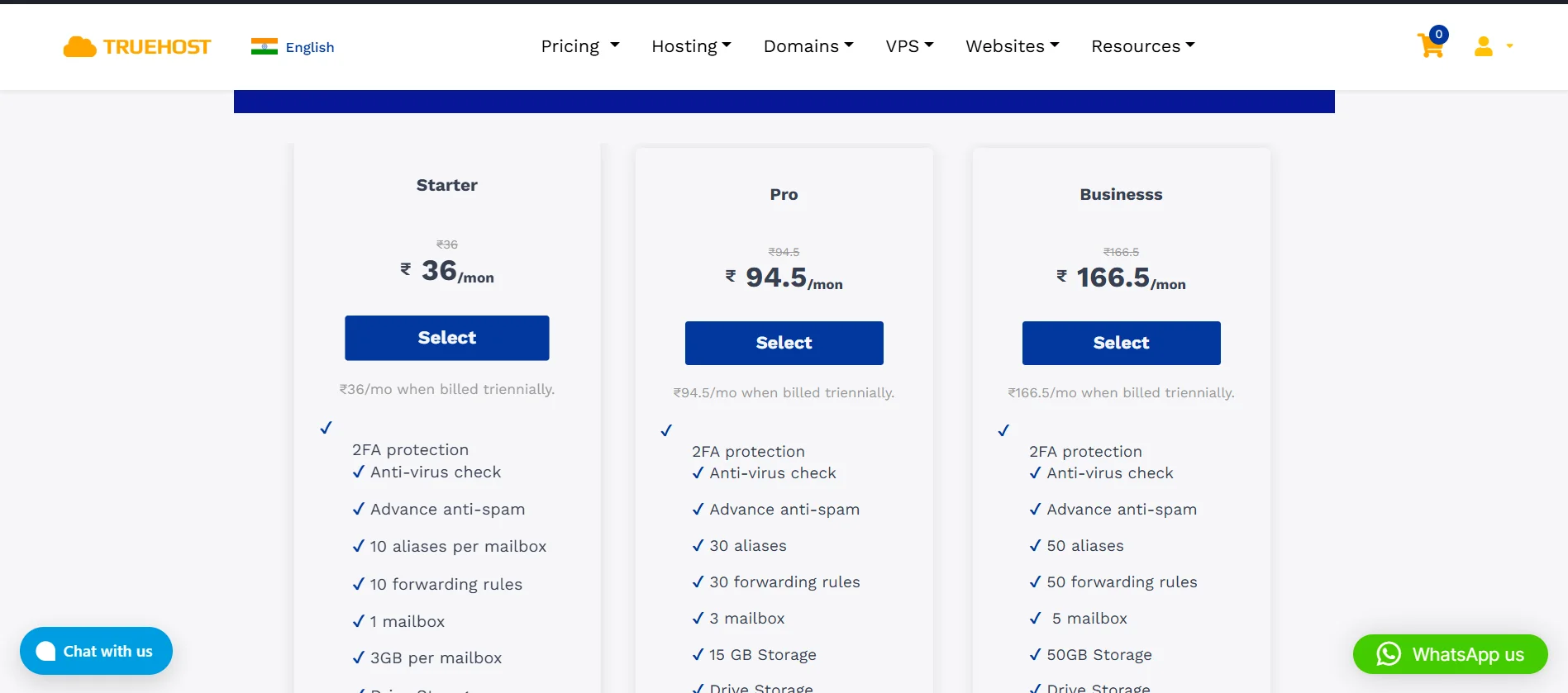
In our plans, you get:
- Professional email on your own domain
- 10+ email aliases per mailbox (increases with plan)
- 10+ forwarding rules (increases with plan)
- Mailboxes (increases with plan)
- Storage starting at 3GB per mailbox (increases with plan)
- 30-day free trial on every plan
You also get an administration panel to manage forwarders, aliases, and mailbox settings in just a few clicks.
In addition, you get:
- Reliable uptime (99.97%) – Your forwarding rules execute without interruption
- Built-in security at every level – Anti-virus, advanced anti-spam, 2FA
- Access from any device – Phone, tablet, or desktop
- Collaboration tools – A built-in office suite for documents, spreadsheets, and presentations
- Support whenever you need it (24/7/365) – Resolves configuration issues quickly
Conclusion
Email forwarding feels small until you have it running; then you wonder how you managed without it.
Set it up, organise, test, and let it handle itself from there.
Combining this with a solid email hosting plan will provide an effortless way to keep your communication clean, professional, and under control.
For more information on how we can help with email hosting, contact us.